Chat and Build are the two everyday working modes of Sovereign AI. They live on the same screen, there is no separate “chat page” and “build page” to navigate between. A toggle at the top of the screen swaps which mode you are in instantly, in place, with no page reload and no lost conversation.
- →Chat is a general-purpose assistant: ask questions, research a topic, draft something, or talk through a problem. It is not tied to any particular codebase or project.
- →Build is the same conversational interface, scoped to one of your org’s projects (typically a connected code repository) and backed by the tools an agent needs to actually make changes there, files, branches, and the ability to launch a multi-agent swarm to do larger work.
Chat-only seats never see the toggle at all. This is seat-gated and fails closed: a stale bookmark or browser-storage pointer at Build redirects straight back to Chat, it is not a bug. This guide calls out clearly, section by section, which elements are Chat-only, Build-only, or shared between both.
The mode switch
Along the top of the screen is a four-way switch: Chat, Build, Flows, Data. Your org’s seat plan determines which segments you see. Clicking Chat or Build swaps the conversation surface in place, same screen, same URL. Clicking Flows or Data takes you to those separate tools. Clicking the segment you are already on jumps back to that section’s home. The mode you last used is remembered per browser for your next visit; on first arrival you land in Chat.
Starting a conversation
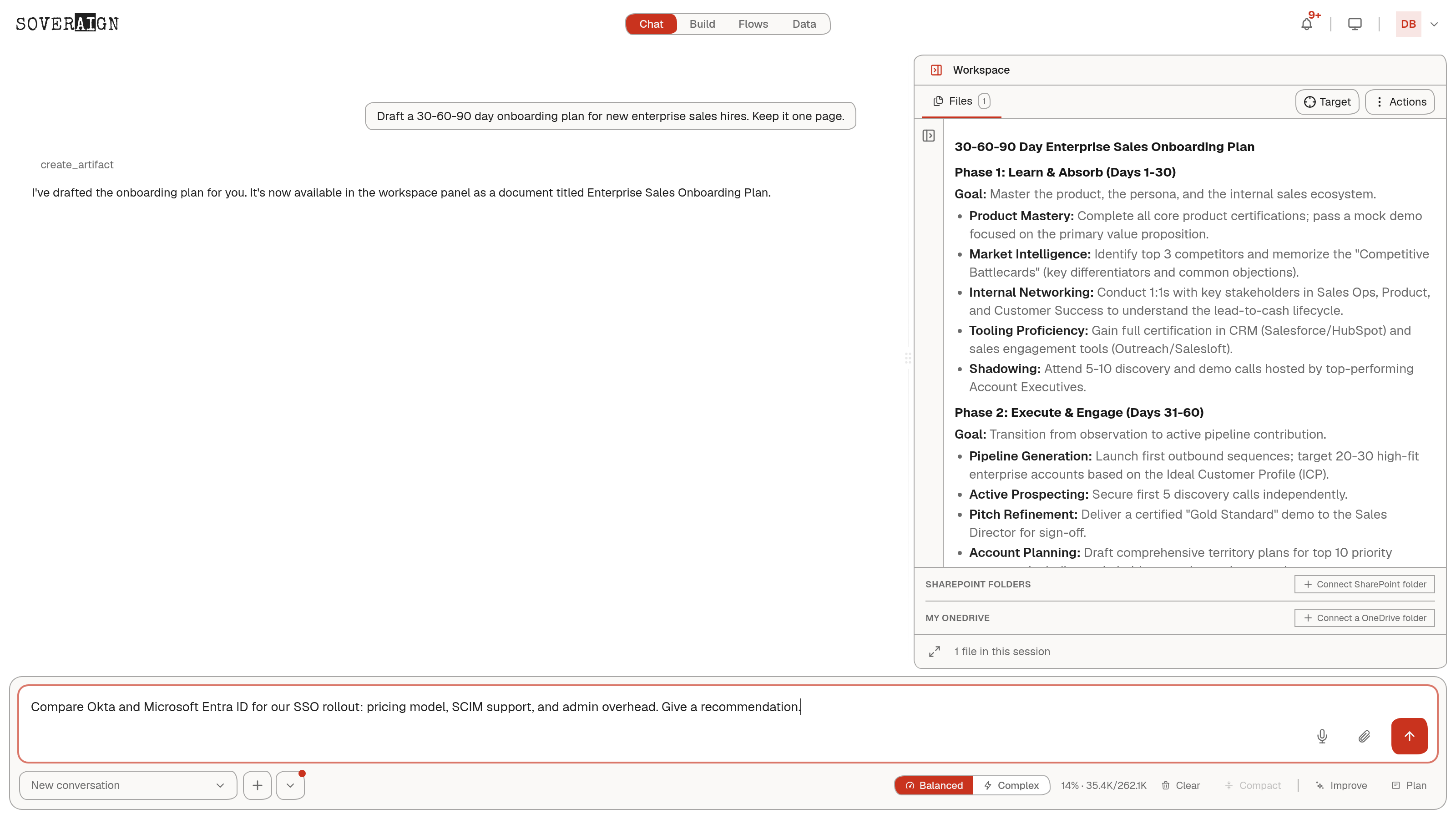
Chat: with nothing going on yet you see a Quick Start grid, ready-made prompt starters like “Research a topic,” “Draft an email,” “Summarize,” “Compare options,” or “Brainstorm ideas.” Click one to drop its starter text into the composer, ready to edit before you send. A rotating one-line greeting sits above the grid, and a Recent chats list appears below it once you have history. Click Edit Quick Start to reorder cards, write your own, or hide the defaults, an org admin can lock certain cards in place for everyone.
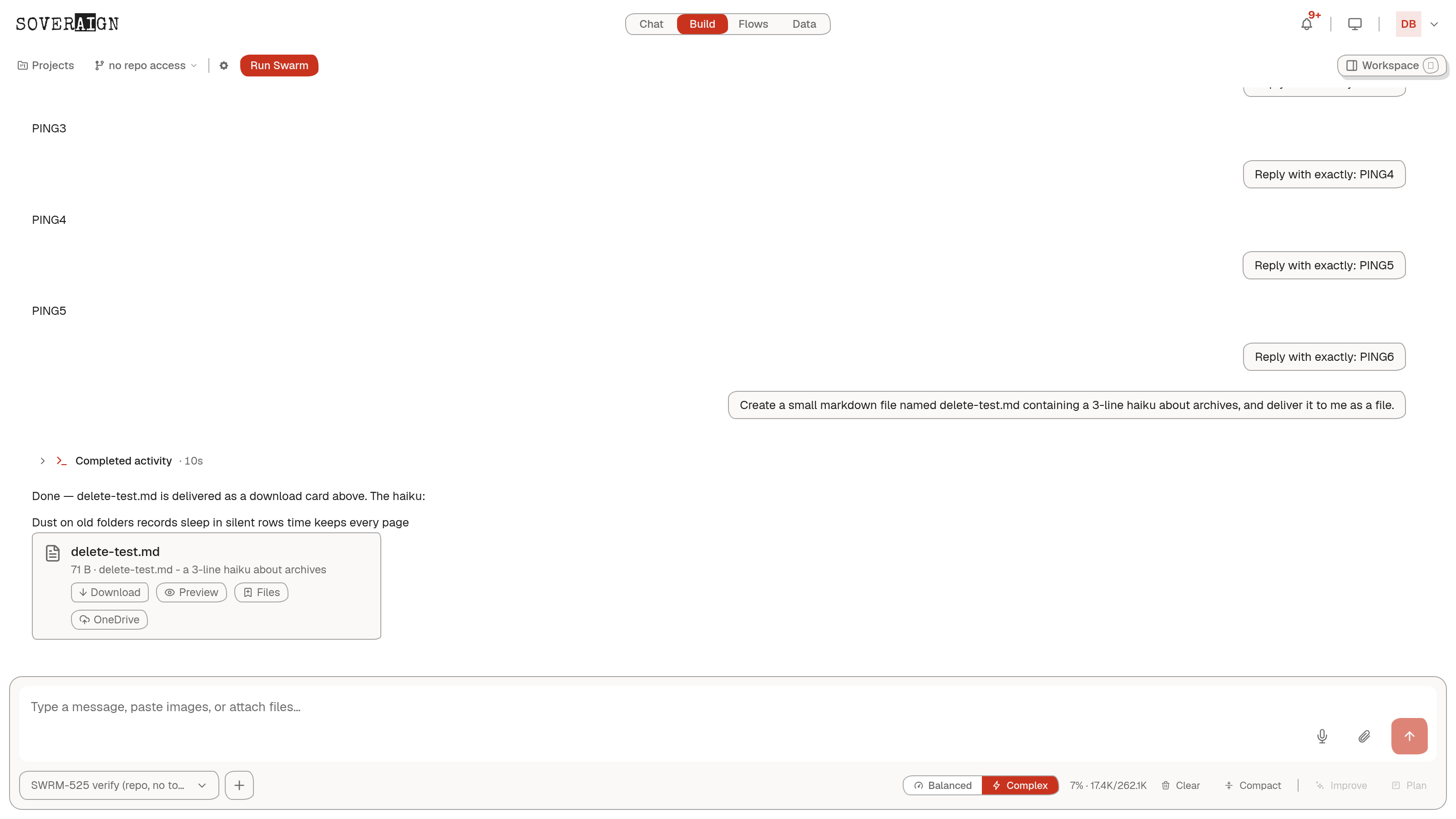
Build: there is no quick-start grid. The composer’s footer instead shows a project switcher, pick which project (repository) you want to work in. Nothing else in Build works until a project is selected: you see “Create a project to start building” if your org has none yet, or a plain project picker if it does. A + button next to the picker creates a new project without leaving the screen.
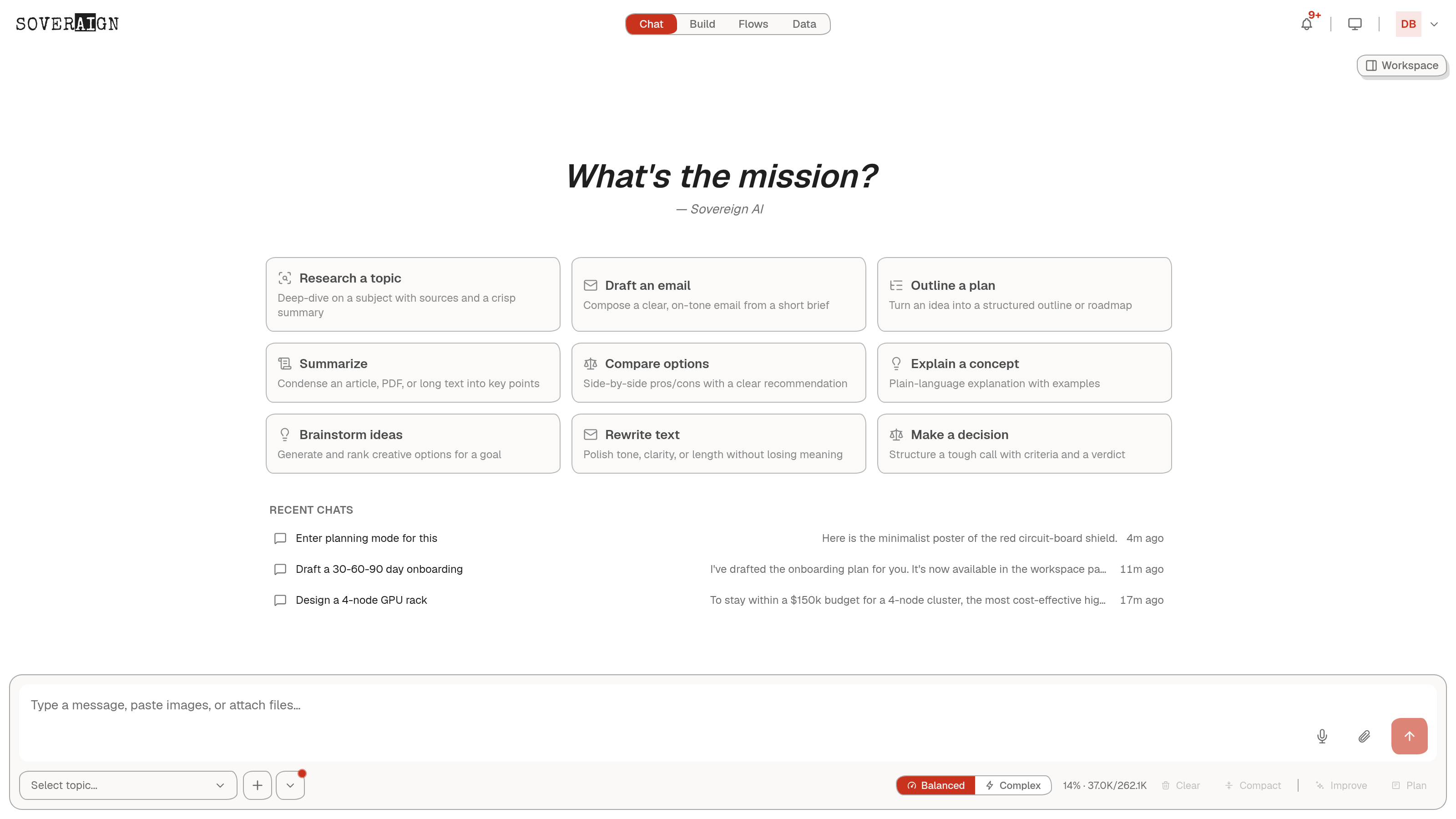
The composer (shared)
The composer is the message box at the bottom of the screen. Its controls are almost identical in Chat and Build:
- →Voice input — dictate instead of typing.
- →Add attachments or skills (the paperclip) — attach files/images, or invoke a saved skill with a
/command. - →Balanced / Complex — a two-way switch for how much model firepower to use. Balanced routes automatically to whichever model fits the task; Complex forces the most capable model class. Clicking the indicator opens the fuller model picker if your account can choose specific models directly.
- →Clear session — wipes the current conversation and starts fresh (confirms once your context is non-trivial).
- →Compact — asks the agent to summarize the conversation so far to free up context room. Appears once there is enough history for context usage to matter, with a small readout showing how full the window is.
- →Improve — sends your draft prompt through an AI rewrite pass before you send it.
- →Plan — tells the agent to draft a plan first and pause for review, rather than doing the work immediately. See the gate cards section below.
- →Send / Enter — sends the message. While streaming this becomes Stop; a Queue button appears if you would rather line up a follow-up to run right after the current one finishes.
Typing @ opens an autocomplete of things you can pull in as context: connected tools, knowledge bases, and documents, labeled accordingly. Keep typing to filter, arrow keys plus Enter/Tab to pick, Escape to back out.
The paperclip attaches documents, spreadsheets, presentations, images, plain text/code, PDFs, and common audio/video/archive formats (a handful of executable script types are blocked). Attached images show as thumbnails before you send; clicking a thumbnail in a sent message opens it full-size in a lightbox you can page through with the arrow keys.
Build only: a small crosshair chip can appear next to the project picker showing which open workspace document your reply is currently “aimed at”, useful when actively editing a specific file or output and you want the agent’s next reply routed straight into it. Click the × on the chip to stop targeting it.
The message stream (shared)
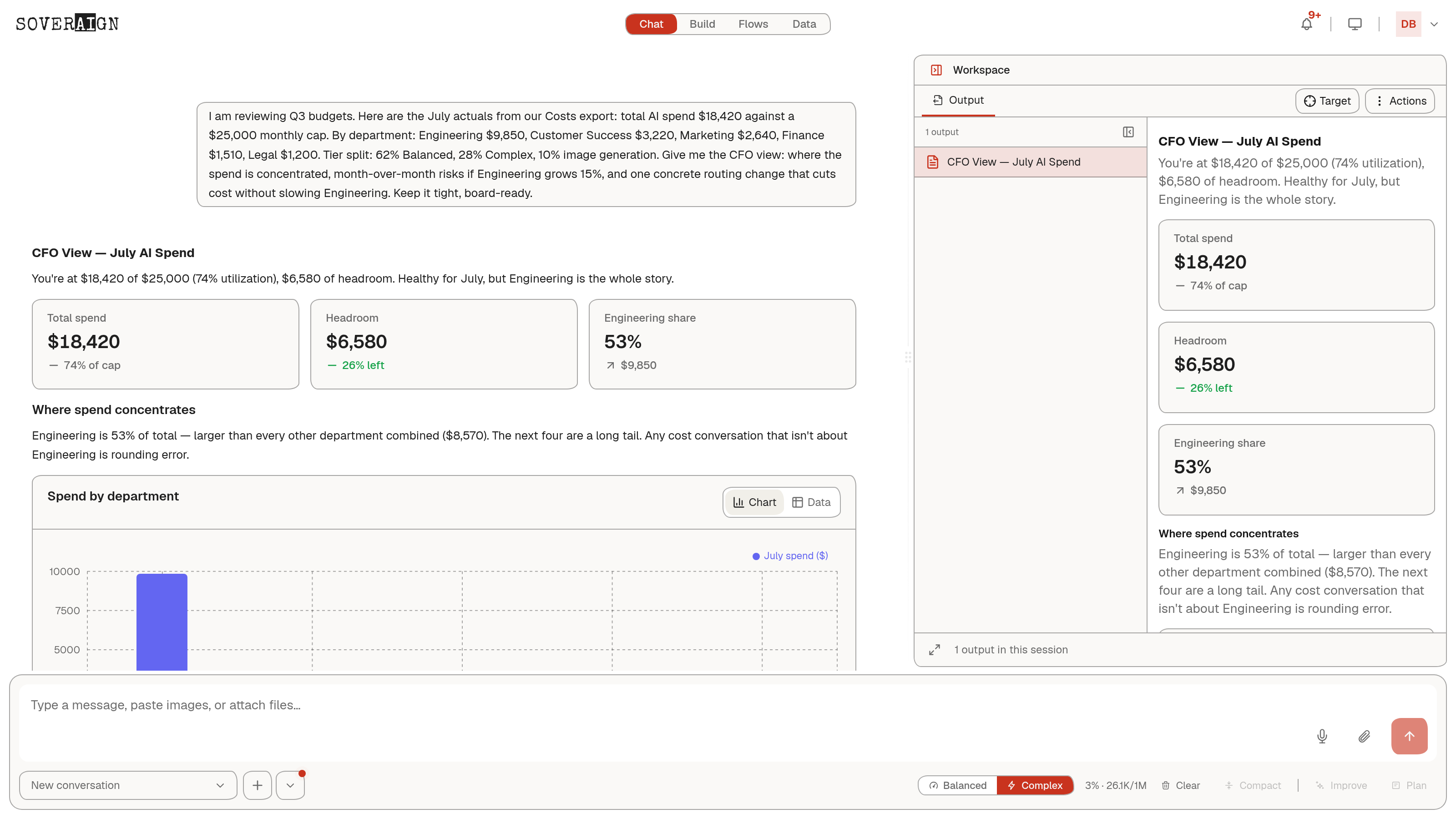
- →Streaming replies appear as they are generated, with a small pulsing indicator while the agent is “thinking” before text starts arriving.
- →Copy — hover any message to reveal a Copy button.
- →Feedback — hover an assistant reply for thumbs-up/thumbs-down. Thumbs down opens an optional follow-up box; only your comment is shared with the Armor team, never your underlying data.
- →Tool activity — a compact activity feed is woven into a reply whenever the agent uses a tool mid-reply (searching, running a command, editing a file). Several routine tool calls in a row collapse into a one-line summary you can expand.
- →Sources — a reply drawing on your org’s connected knowledge base shows an “N sources” badge and a collapsible Sources used section listing each source with a relevance percentage and a link where available.
- →Long messages clip to a max height with a “Show full message” link that opens the complete text in its own scrollable window.
- →“Conversation compacted” — after Compact runs (manually or automatically as context fills up), a collapsed system note appears; expand it to read the summary of what was condensed.
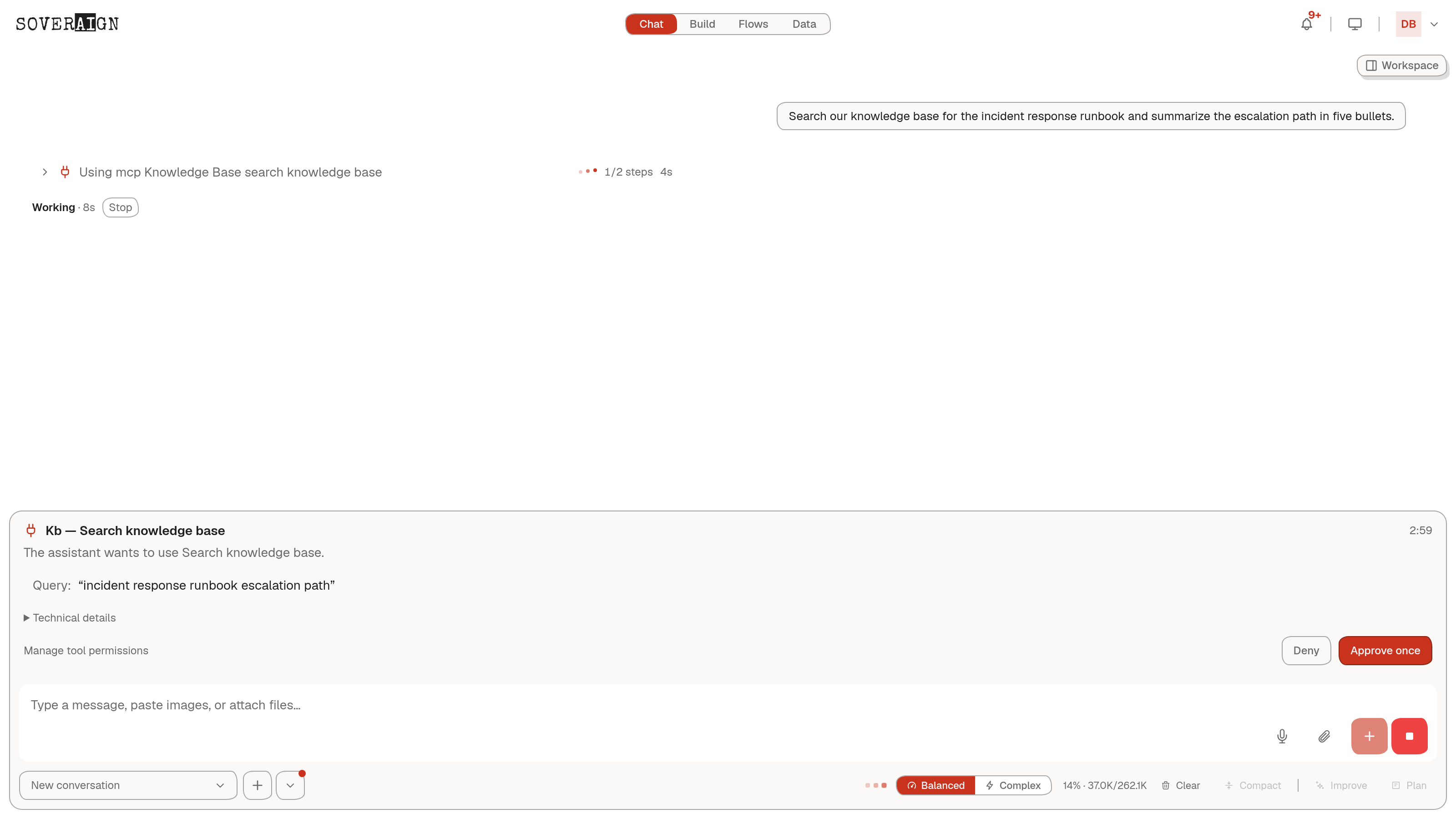
Human-in-the-loop gate cards (shared)
Two kinds of card can interrupt the normal flow to ask for your input before the agent proceeds. Both are shared between Chat and Build.
- →Tool approval: one-time approval before the agent runs an action that touches a connected external app.
- →Plan approval: a Plan Proposed bar to revise, accept, or build from a drafted plan before anything spends.
Tool approval
Actions that touch a connected external app (Jira, Microsoft 365) require explicit one-time approval before the agent may run them. The tool approval card shows exactly which app and action is being requested, the arguments it will run with (plain, human-readable rows, with a “Technical details” disclosure for raw values), and a countdown for how long the approval stays valid. Choose Approve once or Deny; a Manage tool permissions link goes to your connected-apps settings if you want to change the underlying rules instead of approving case-by-case.
Plan approval (the Plan Proposed bar)
Using the composer’s Plan control (or the agent deciding a plan is warranted) produces a plan document and a slim “Plan Proposed” bar above the composer with three choices: Revise… (routes to the composer; whatever you type next rewrites the plan in place), Accept (saves the plan as agreed and pauses there, does not start or spend anything), and Build with Swarm (Build only, saves the plan then opens the swarm builder prefilled with it, see below, nothing launches automatically). If the plan has open review comments, Accept and Build are blocked until resolved; Revise is always available. A Dismiss control clears the bar without losing the plan, it stays saved and reappears if you revisit it.
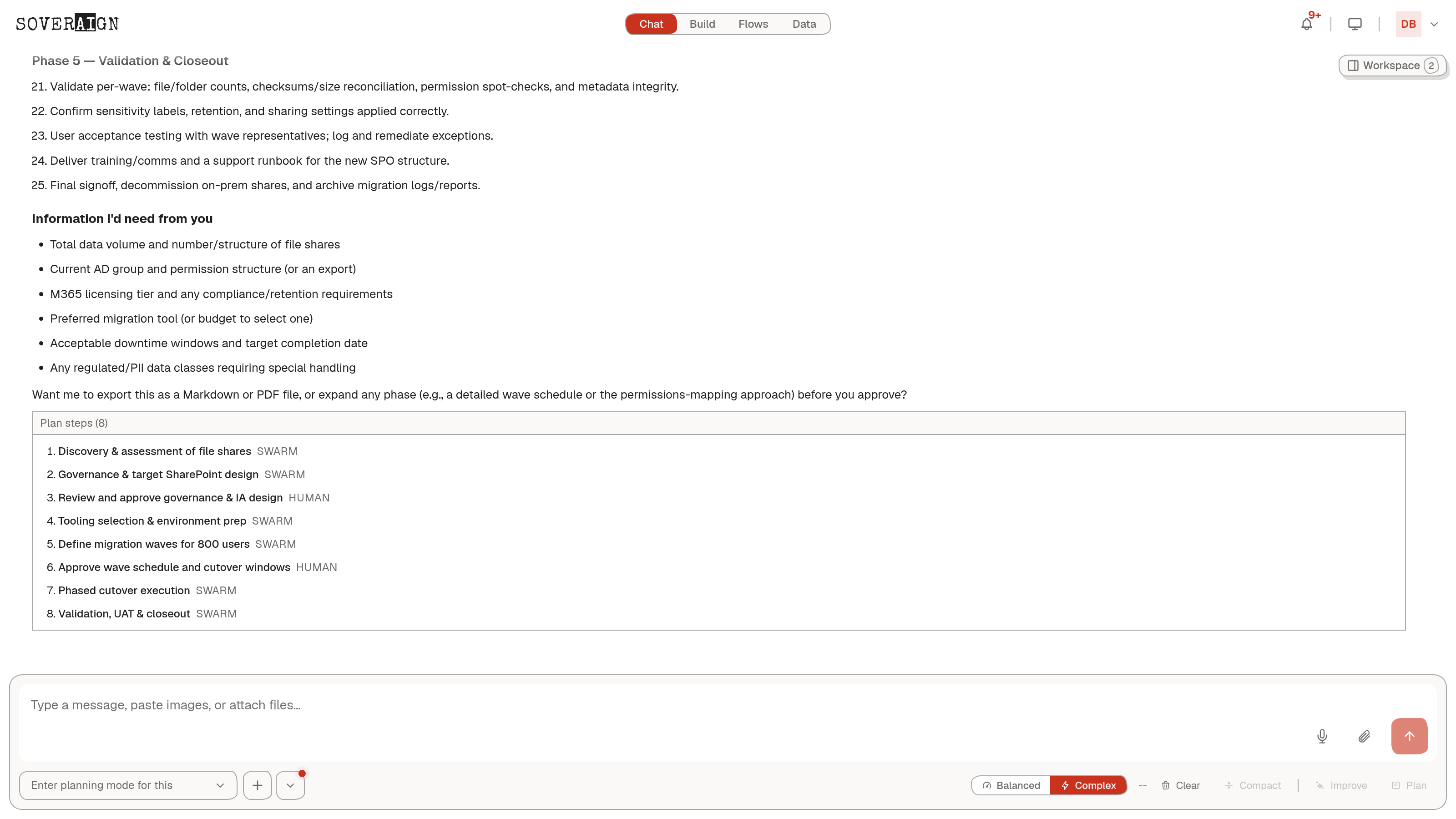
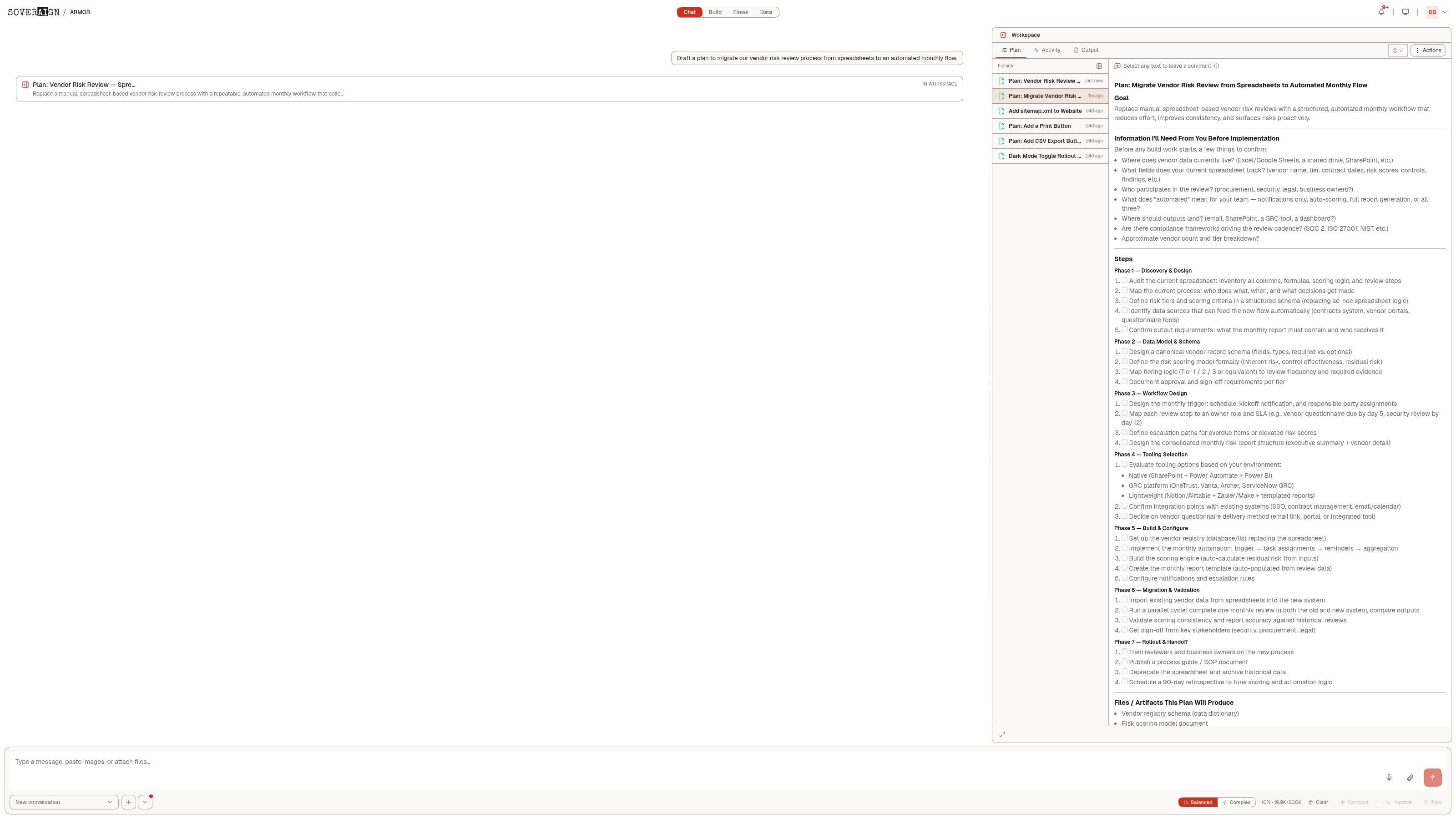
Accepting a plan doesn’t build anything. Accept only records the plan as agreed; you still choose Build with Swarm (or send a normal message) to actually act on it. A running swarm also blocks a second Build with Swarm on the same plan bar until the first finishes or is stopped.
Model picking (shared)
Click the model name/indicator in the composer to open the model picker. Most accounts see a simple two-choice switch: Balanced (smart routing to the cheapest capable model per task, marked “Recommended”) and Complex (forces the most capable model class). Accounts with the full catalog exposed see every available model grouped by provider, each with a one-line description and, when your org has pricing configured, a per-million-token cost. A search box filters the list; models your org hasn’t enabled show a lock icon and a reason rather than disappearing. A model whose last health check failed is flagged “Unreachable.” If the current model supports adjustable reasoning depth, a Low / Med / High selector appears too. Picking a model applies immediately, with a brief “Switching model…” progress bar while it takes effect.
Topics & history (Chat only) vs. the project picker (Build only)
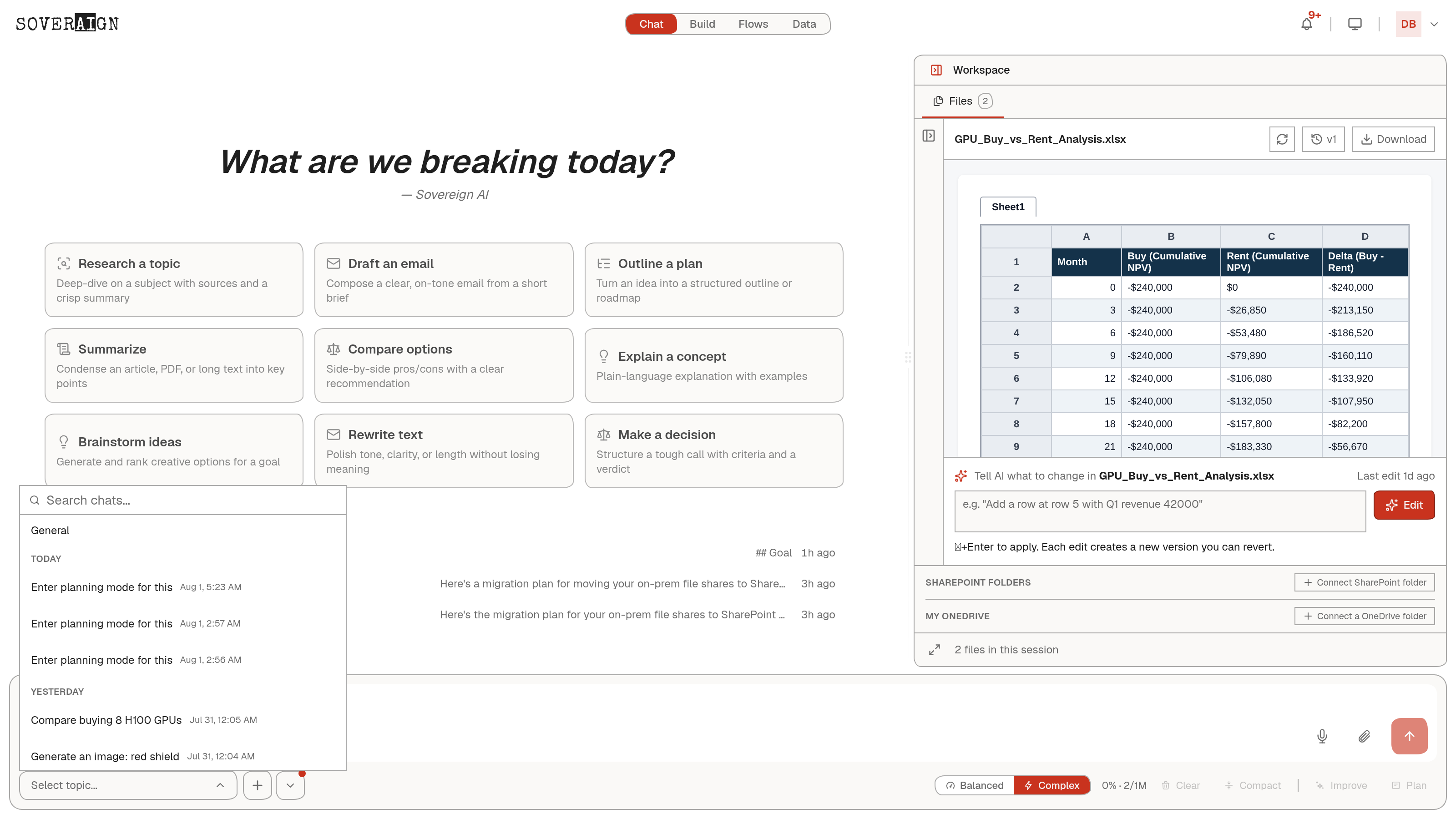
Chat organizes conversations into topics, separate threads within the one chat surface. The composer footer has a topic switcher (a dropdown pill) listing every past topic with search, rename, pin, and delete; a + button starts a brand-new, empty topic that auto-titles itself from your first message; and a Quick Start caret reopens the Quick Start menu to seed a fresh topic from a template at any point.
Build has no topic switcher. Its footer is the project switcher instead, there is no single default project and Build never auto-selects one for you. Switching projects switches which repository/branch/workspace the whole surface is scoped to.
Build-only controls
A few things appear only in Build, reflecting that it is scoped to a real project with a connected repository.
- →Git branch and settings — a compact control shows the active branch for the project; a gear icon opens that project’s default Git settings.
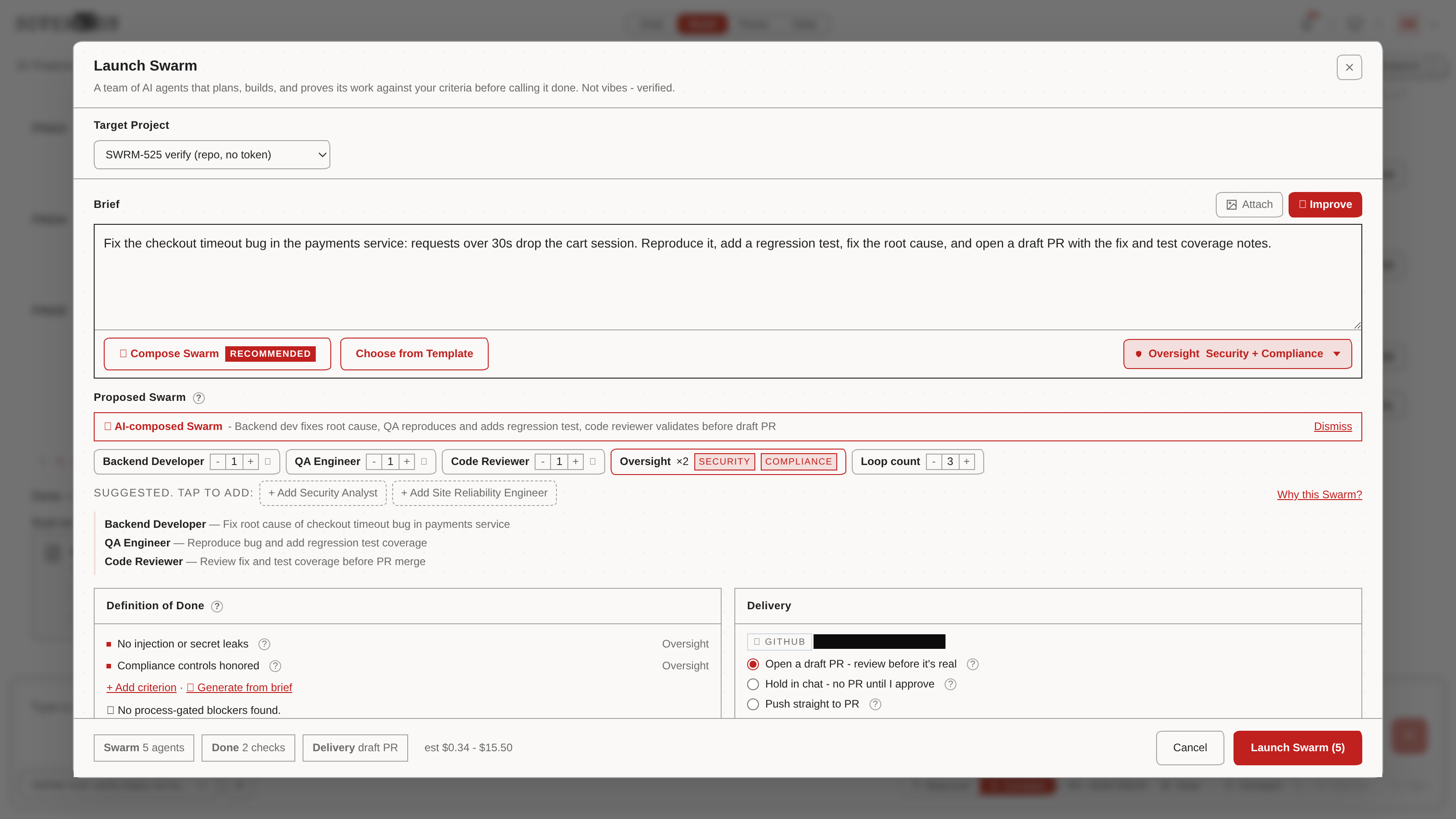
- →Run Swarm — opens the swarm builder, where you describe a task and the system proposes a multi-agent crew to carry it out, with a cost estimate and an editable “definition of done.” You review and adjust the proposed crew before launching, nothing runs until you click Launch there. Disabled until a project is selected.
- →Live swarm progress — once running, a progress card tracks it in the stream: per-agent status (queued/running/completed/failed), a live activity feed, elapsed time, token usage, and a cancel button.
- →VM retry — if a swarm’s virtual machine needs to retry a step, a small status card shows the retry countdown with an option to cancel the pending retry.
- →Held-for-review results — a swarm can be configured to pause before opening a pull request and instead “hold” its work for review. The result card summarizes which acceptance criteria were met, with buttons to Push as draft PR, Ask for changes (reloads the composer with a prompt to relaunch on the same branch), or Discard (irreversible, deletes the branch).
Discarding held swarm work is permanent, it deletes the hold branch. Use Ask for changes instead if you just want another pass at the same work.
The Workspace panel (shared)
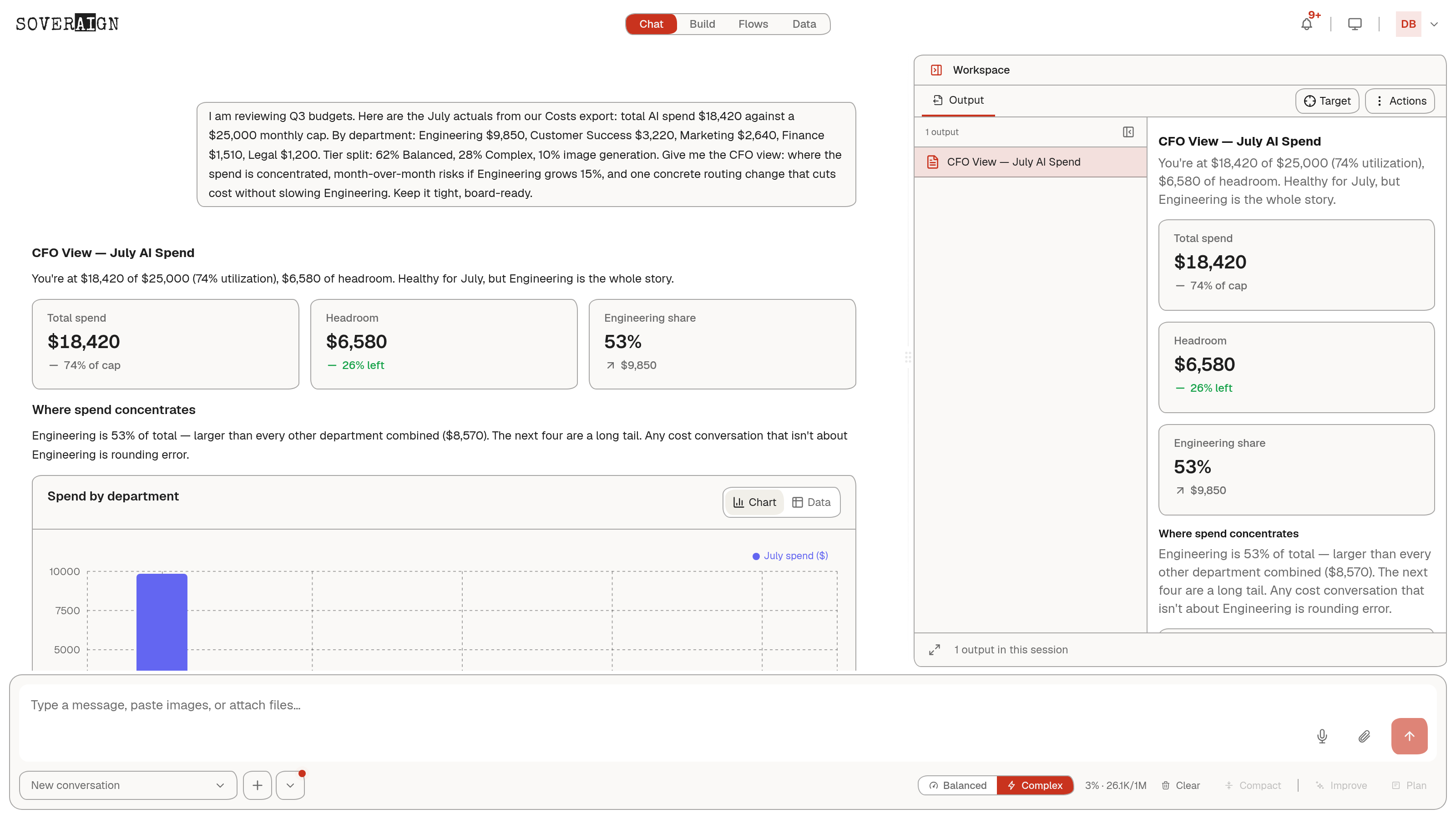
Both Chat and Build share one collapsible side panel called Workspace. Toggle it with the icon-labeled button at the far right of the top strip. It reserves zero space while closed, the conversation is full width until you open it. Only tabs with real content appear, there is no empty/greyed-out tab clutter:
| Tab | What it holds |
|---|---|
| Plan | The live plan document for the current conversation, the same document the Plan Proposed bar is built around. Supports inline comments and a version history once revised more than once. |
| Files | Every file the session has touched: agent-generated plus uploaded documents. Selecting one previews it inline (images render directly; PDFs/HTML/Office documents open in an embedded preview; anything else offers a download). Editable Office documents support in-place AI edits with their own version history. |
| Outputs | Documents you’ve pinned or the agent has explicitly routed here for review, read/comment/iterate the same way as a plan. |
| Preview (Build) | A live preview of whatever the build produces (e.g. a running site), with its own URL bar and version/visibility details. |
| Review (Build) | The agent’s review write-up when a build phase ends in a formal review document. |
| Activity (Build) | A dedicated view of the swarm’s live/completed activity feed, separate from the compact inline version in the chat stream. |
Every tab shares the same Actions menu (top-right of the panel) for Copy, Export/Download, and version history. When more artifacts are open than fit across the top of the panel, extras collapse into a “+N” overflow menu rather than disappearing.
Common gotchas
- →A chat-only seat never sees Build, even if a stale bookmark or browser storage points at it, you’re always redirected back to Chat. This is intentional, not a bug.
- →Accepting a plan doesn’t build anything. Accept only records the plan as agreed.
- →A running swarm blocks a second Build with Swarm on the same plan bar until the first one finishes or is stopped.
- →Deny on a tool approval is not remembered as a blanket rule, it just refuses that one request. Use “Manage tool permissions” to change a whole category going forward.
- →Discarding held swarm work is permanent, it deletes the hold branch.