The Files tab
Every project chat has a Files tab: a session-wide list of every file the session produced, derived from the transcript itself so it works in swarm and chat-only sessions alike. It opens automatically when the first artifact appears (and stays closed if you closed it yourself), and whether it is open is remembered per project.
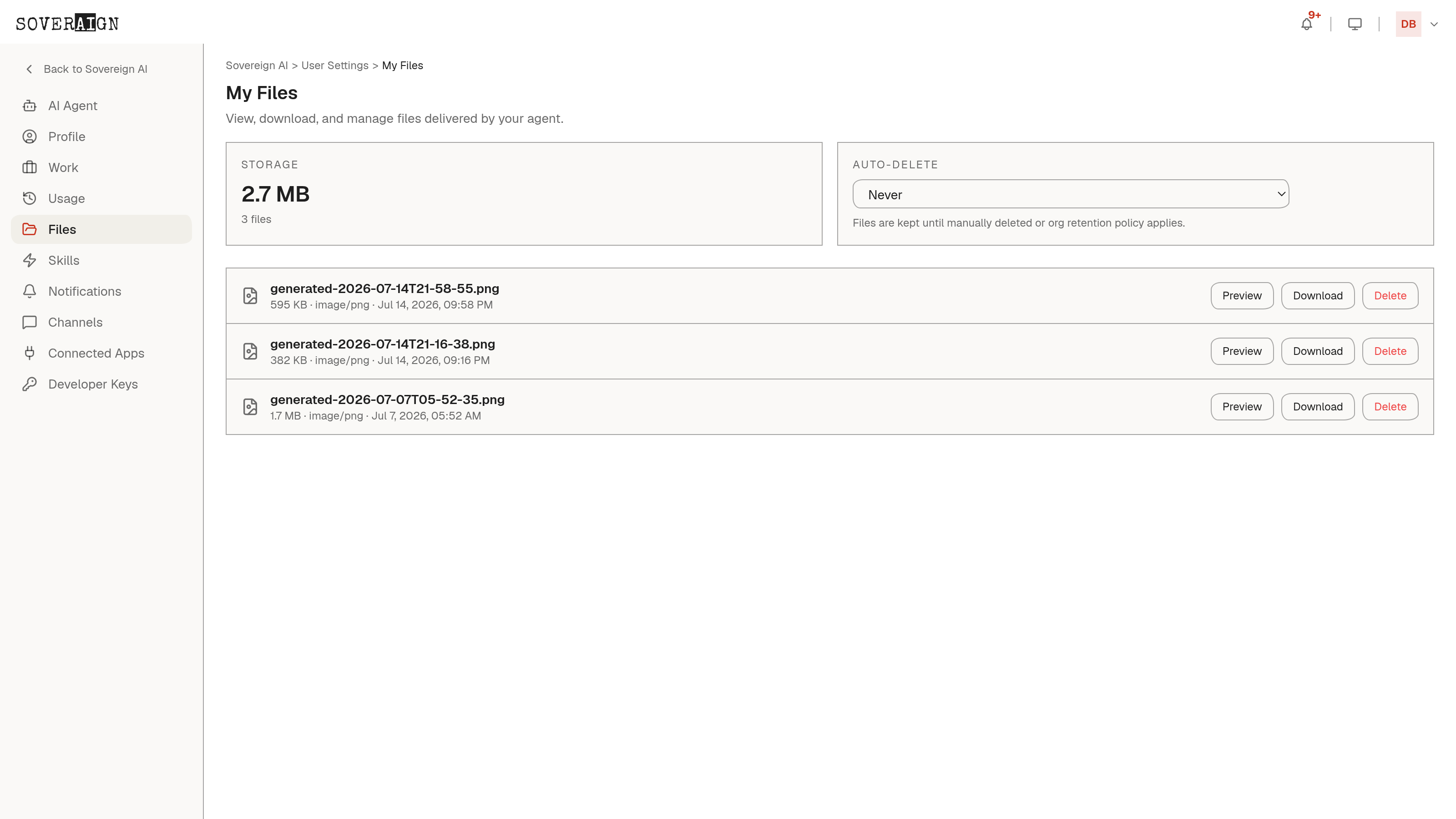
The tab is a master-detail surface: pick a file on the left, preview it on the right, and the list collapses to give the preview full width. What the detail pane shows depends on the file: images render inline, PDF, HTML, and office documents render in a preview frame, and plain text offers download plus send-to-panel for reading and commenting. Office documents are the editable, versioned working set, marked with a pencil indicator.
- →Rename: inline on the row; chat artifacts and stored files share the same rename path.
- →Delete: per row, with confirmation; the list updates immediately.
- →Download: fetches a fresh signed URL each time, so links do not go stale.
Images
Generated and pasted chat images preview in the Files column too: clicking one closes sibling panels and opens the image there, so every image lands in one predictable panel. Generated images resolve through a fresh signed URL; pasted images render from their data directly.
Versions
Stored files are versioned. The versions endpoint lists every version of a file, and revert is a pointer change: the file's current-version marker moves to the target version and nothing is deleted, so a revert is itself reversible.
Knowledge documents
Files uploaded under Organization Settings > Knowledge & Data are a different surface: they are chunked and indexed for retrieval, with per-document ingestion status and chunk counts. Uploaded documents are screened by your content policy at ingestion. See Knowledge sources for limits and management.
Workspace files
Organization Settings > Workspace Files holds Markdown files provisioned into agent workspaces. System files ship with the platform; org admins can add custom files.
- 1Click New File and give it a display name and a file name (letters, numbers, underscore, or hyphen, ending in .md).
- 2Edit the content in the Markdown editor and save.
Each org can create up to 10 custom workspace files, in addition to the system files.