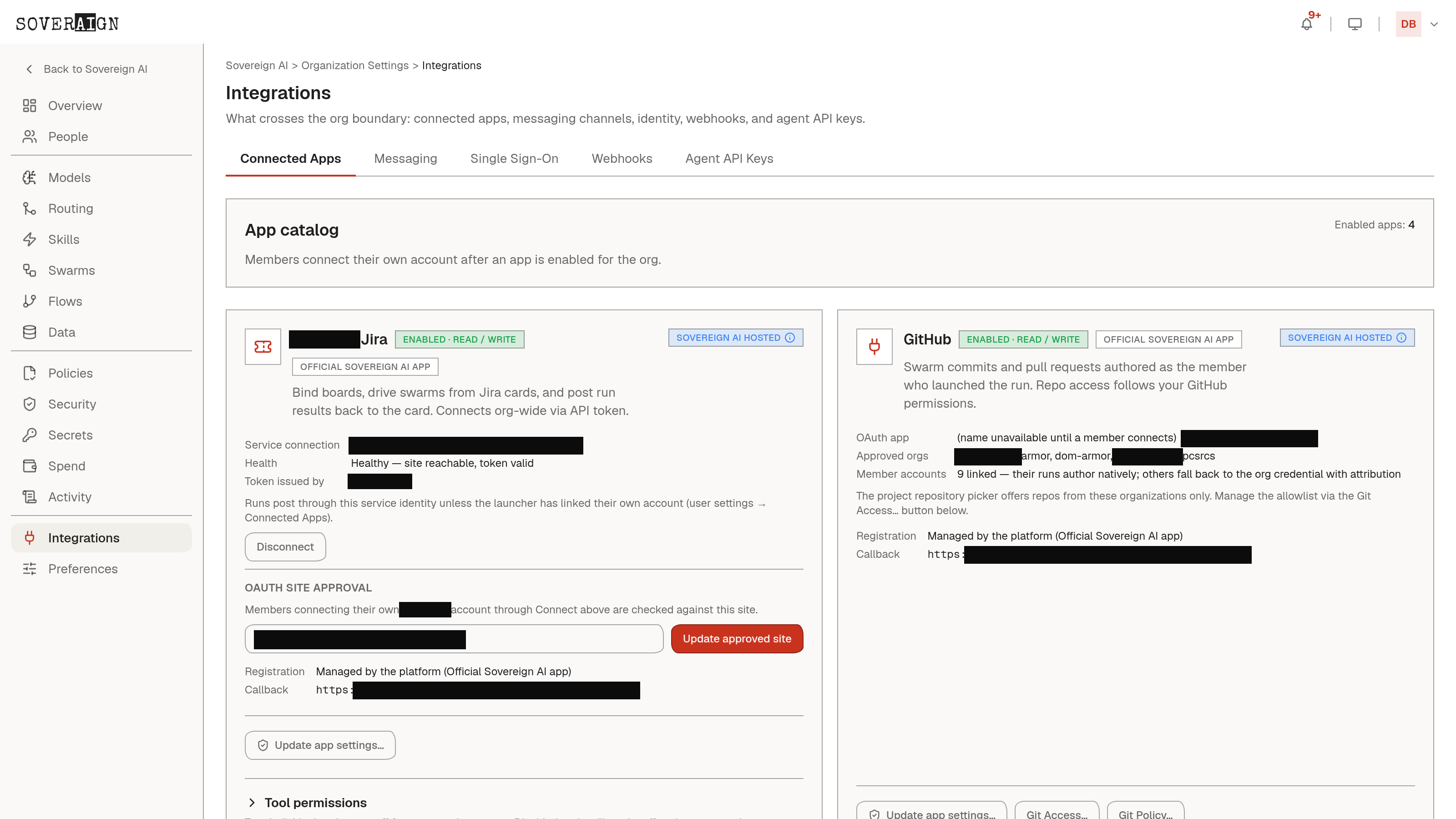
Open Organization Settings > Connected Apps. Each catalog app shows a status chip encoding both state and capability: Enabled with Read / Write (green, it can act), Enabled with Read-only (amber, it sees but cannot act), Setup required, Not enabled, or Failed (red). Members connect their own accounts from their personal Settings > Connected Apps page, where the chip describes their link rather than org state. Because the chip encodes capability and not just status, an admin can tell at a glance whether a tool can act on real data or only read it, without opening each app's config to check.
Enabling an app
- 1For OAuth apps, open the setup form and enter the client ID, client secret, and scopes from your app registration, then enable it.
- 2Members then click Connect on their personal Connected Apps page to link their own account.
- 3Credential-less apps such as Knowledge Base enable with one click and are available to everyone immediately, no per-user connect.
If an OAuth connection fails, the outcome surfaces once as a toast with the failure message when you return to the page: no silent token-exchange failures.
GitHub
The GitHub tile shows the OAuth app, approved GitHub organizations, and how many members have linked their accounts. Manage the org allowlist via the Git Access panel on the card; from there, Install App redirects you to GitHub to install the GitHub App on an approved org. Installation rows show Active or Pending install status, and the project repository picker only offers repos from approved orgs. Jira gets a similar dedicated connection panel.
Tool permissions and approval cards
Per tool, choose how it behaves when a run acts as a user: Always allow, Needs approval, or Blocked. You can also disable a tool org-wide, which locks it for every member. Tools are grouped by read versus write capability, and members can tighten (but not bypass) the org default for themselves.
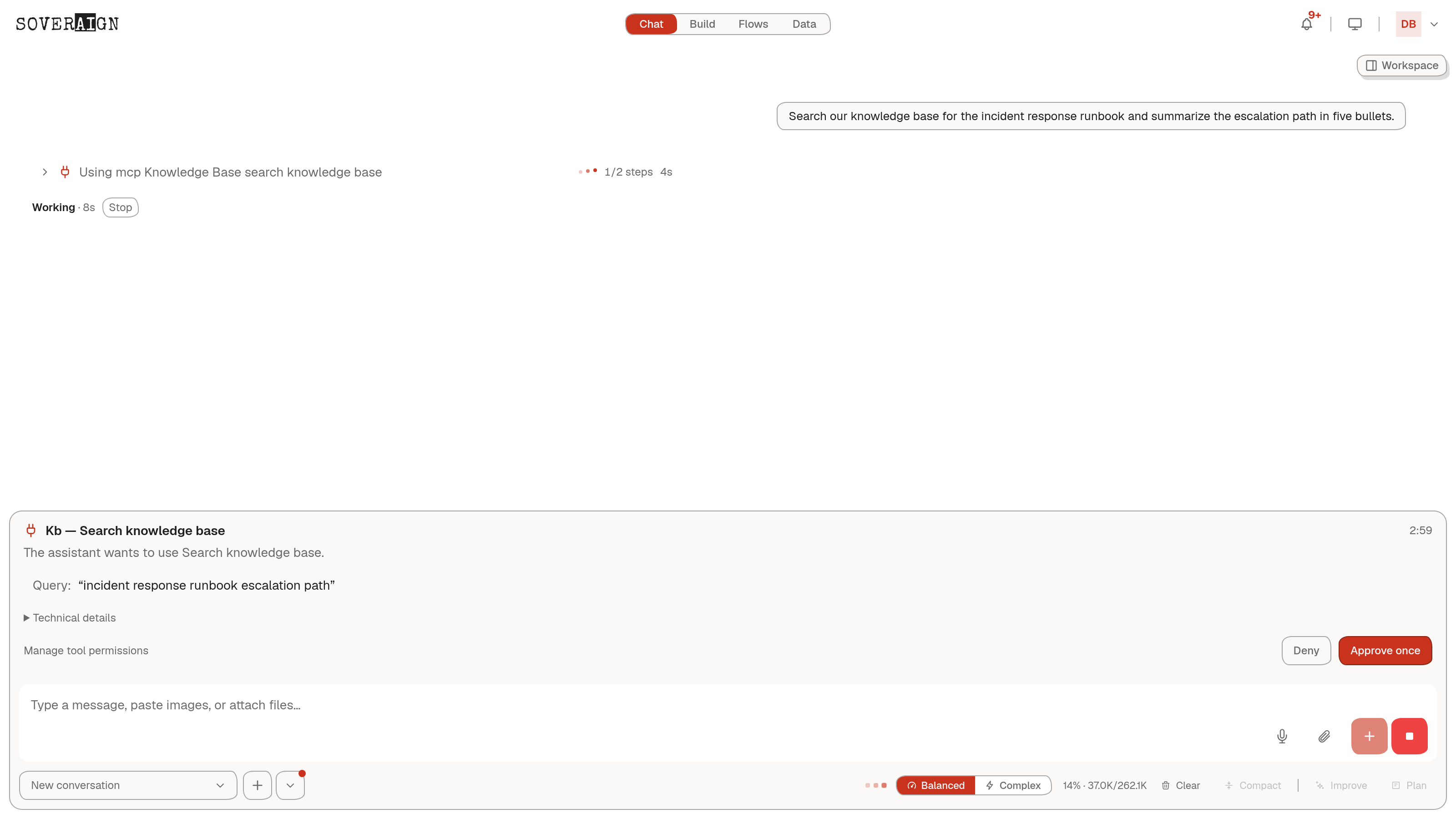
A tool set to Needs approval raises an approval card in chat when an agent tries to call it: the run pauses, the card shows what the tool wants to do with technical details available, and nothing executes until you decide. Approvals are single-use and time-boxed; an expired approval counts as a deny. Blocked tools fail closed.
Provider Secrets
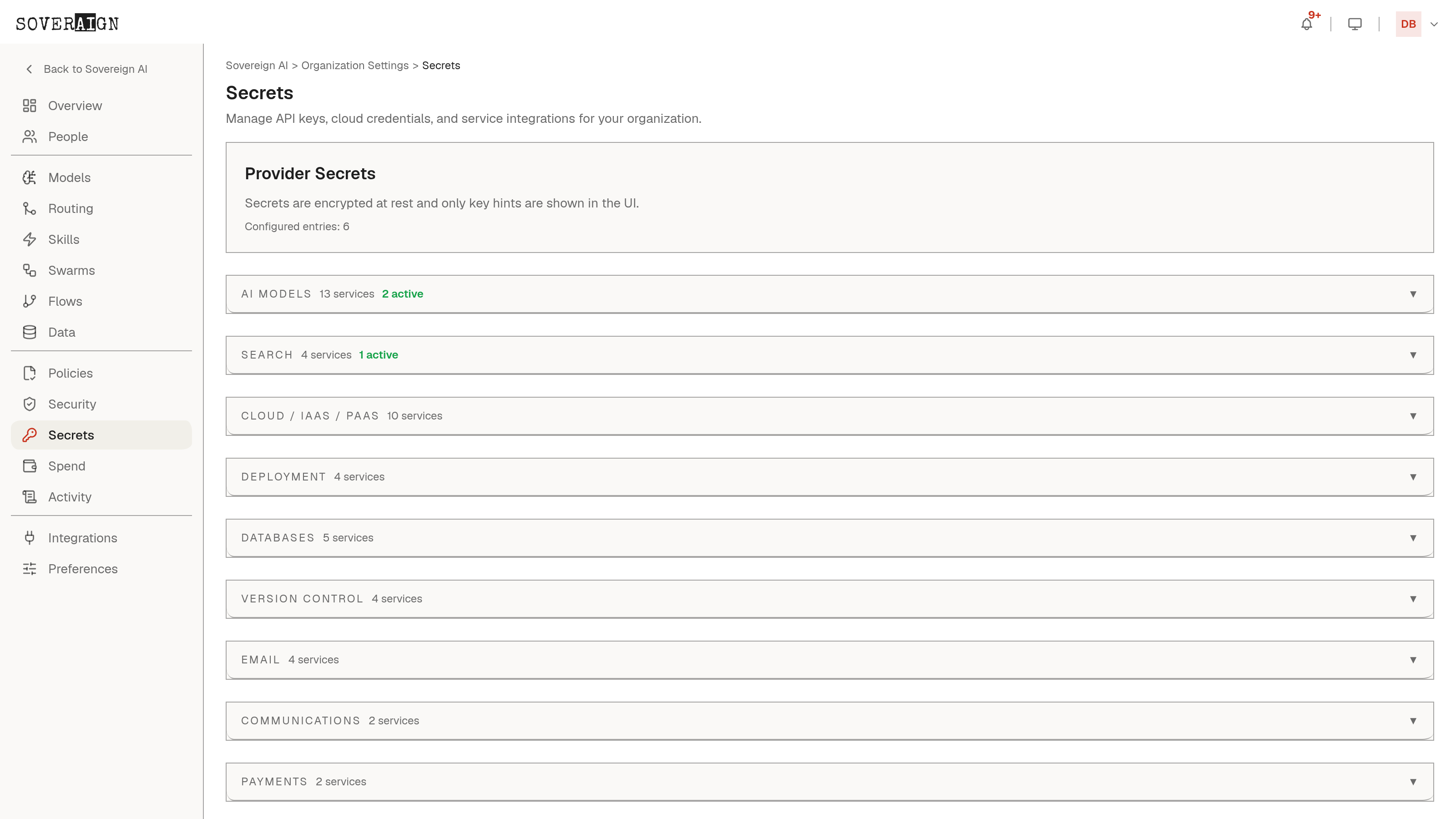
Organization Settings > Provider Secrets holds API credentials agents use directly, organized by category: AI model providers, search, cloud providers, and ERP & Finance, which covers NetSuite (token-based auth: account ID, consumer key and secret, token ID and secret) and SAP S/4HANA Cloud (API host, communication user, password, and an optional communication scenario ID). Each field documents the exact vendor menu path to find the value. Secrets are write-only: there is no show or hide toggle, and saved values are never displayed back.
With NetSuite configured, agents gain read-only ERP tools (SuiteQL queries and record lookups) that dispatch through the platform API using the org vault, subject to the same tool permission modes as everything else.