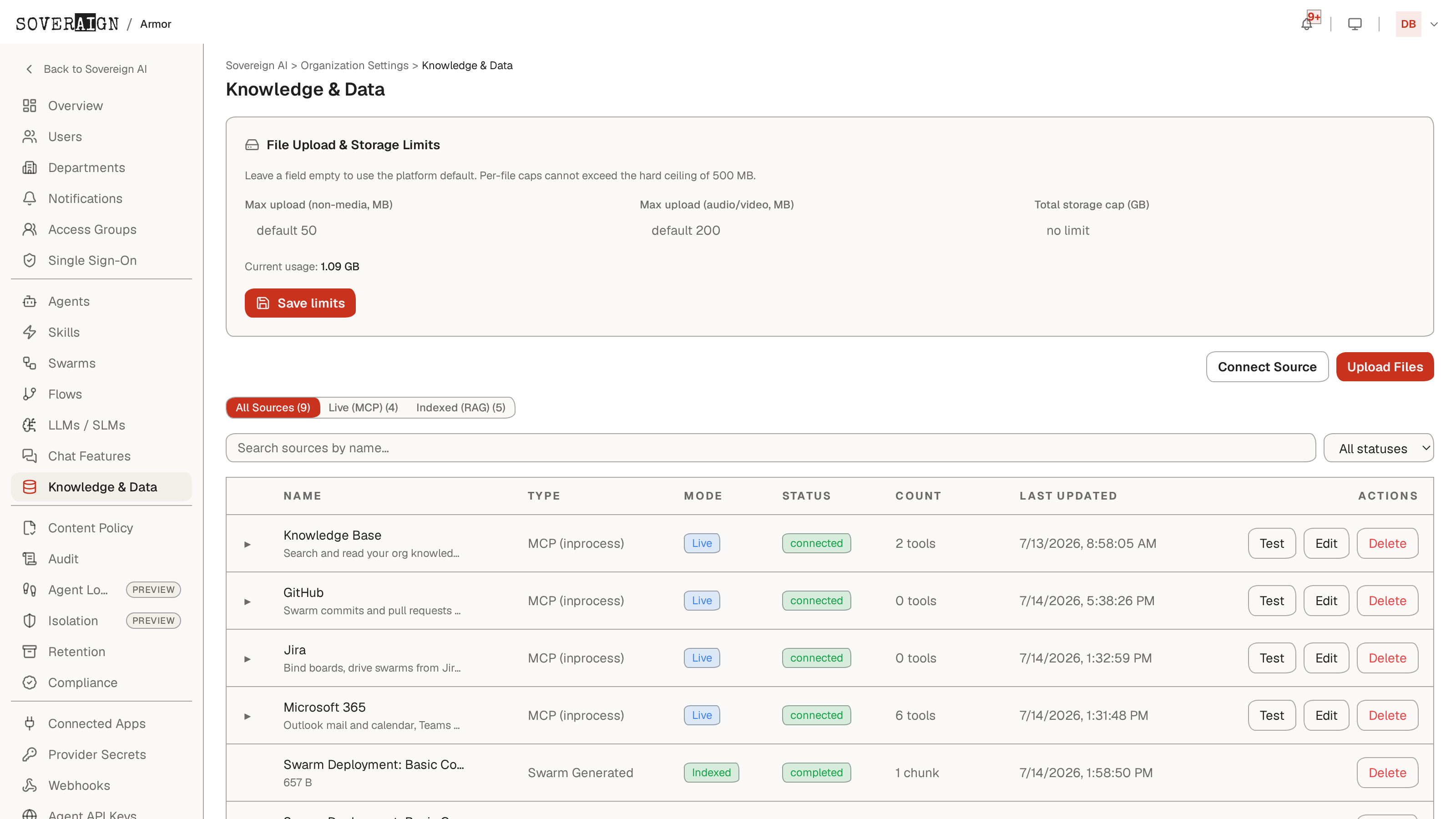
Open Organization Settings > Knowledge & Data. Three tabs partition the list: All Sources, Live (MCP), and Indexed (RAG), each with a live count. Live sources are queried at request time; Indexed sources are chunked and embedded for retrieval. Every row shows Name, Type, Mode (Live, Indexed, or Both), Status, Count, Last Updated, and Actions, with name search and a status filter on top. Unifying both kinds of source in one list means agents miss nothing, and admins confirm what's connected without hunting across separate MCP and RAG screens.
Adding sources
- 1Upload Files: drag and drop or pick files. Uploads are chunked and indexed; each file is capped at 50 MB.
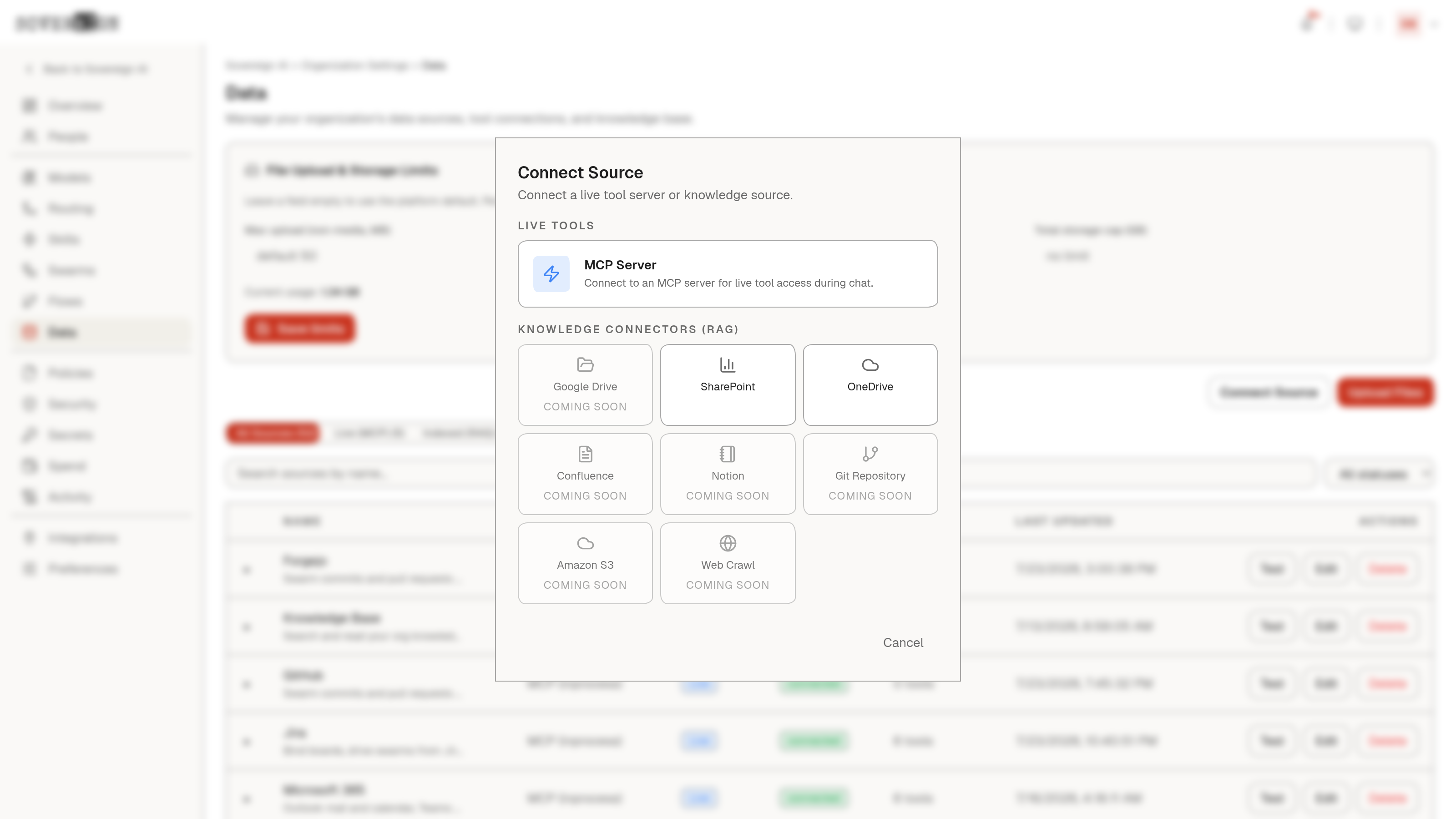
- 2Connect Source: pick a source type. MCP servers connect live; SharePoint and OneDrive connect as syncing connectors with Azure app credentials (tenant ID, client ID, client secret), a site URL or target user, and an optional folder path.
- 3Other connector types listed (Google Drive, Confluence, Notion, Git Repository, Amazon S3, Web Crawl) are not yet wired; the dialog says so and offers Upload Files Instead.
Sync behavior and failure
Connectors sync in the background. While a sync runs, the page polls so status and document counts update live, and the row's button reads Syncing. A failed sync surfaces the real failure reason on the row, not a generic error. A completed sync may report skipped files; sub-folders are not recursed, so a sync that completes with 0 documents usually means a wrong folder path or file ownership. Use Sync now to re-run a connector on demand.
Per-row actions
- →MCP rows: Test (connect and list discovered tools), Edit, Delete.
- →Document rows: Delete. Ingestion status runs pending, processing, completed, or failed, with chunk counts per document.
- →Connector rows: Sync now and Disconnect.
The Type column on document rows records provenance: File Upload, Swarm Generated, Agent Generated, or Generated. Connector-synced files roll up under their connector instead of appearing as standalone rows.
Storage limits
Org admins see a File Upload & Storage Limits panel at the top of the page: max upload size for non-media files (MB), a separate max for audio/video (MB), and a total storage cap (GB, blank for no limit). Org values are bounded by a platform hard maximum shown next to the field.
Managing sources requires the owner, org admin, or platform admin role; other members see the list read only. Connector credentials are stored encrypted and are never returned by the API after you save them.