What you'll build
This Flow is a fully unattended pipeline. On a weekly schedule - and again whenever code is pushed - it fans out into two parallel review swarms, merges their findings, decides whether anything is high-priority, and, only when it is, opens tickets and notifies your team. The finished graph looks like this.
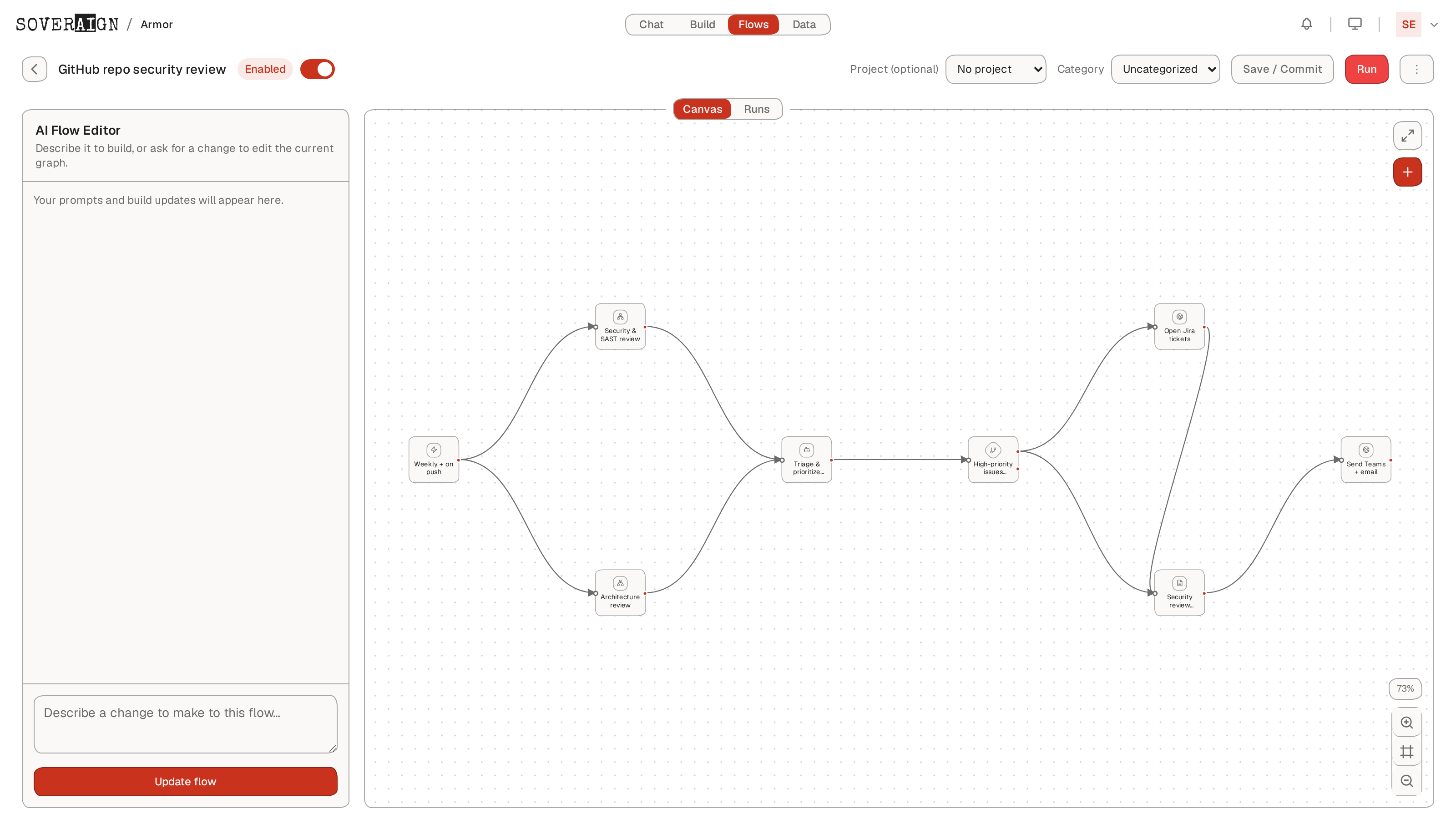
The pipeline at a glance
Trigger (weekly + on push)
   ├──▶ Security & SAST review   (Swarm)  ┐
   │                                       ├──▶ combine
   └──▶ Architecture review      (Swarm)  ┘
                                         ▼
                      Triage & prioritize findings  (Crew)
                                         ▼
                      High-priority issues found?    (Decision)
                         ├─ yes ─▶ Open Jira tickets   (HTTP Request)
                         │                 ▼
                         └─ no ──────▶ Security review report  (Report)
                                           ▼
                             Teams + email report      (HTTP Request)
The building blocks
Flows are assembled from a fixed palette of node types. This use case uses six of them. Open the palette any time with the Add nodes button on the canvas.
| Node | Role in this Flow |
|---|---|
| Trigger | Starts the run. Supports Manual, Schedule (cron) and Event modes. We use a GitHub event + schedule. |
| Swarm | A team of agents that runs a review against the bound project's repo. One does security/SAST, one does architecture. |
| Crew | An agent step (role-based) that reads both reviews and produces a single prioritized findings list. |
| Decision | Branches the Flow. Routes to ticketing only when high-priority issues are present; otherwise straight to the report. |
| HTTP Request | Calls an external API with a stored credential. Used twice: create Jira issues, and post the report to Teams/email. |
| Report | Synthesizes the run's outputs into a single readable deliverable, stored on the run. |
Why HTTP Request for Jira & Teams? There is no dedicated "Jira" or "Teams" node. Ticketing and notifications are done with the generic HTTP Request node pointed at the Jira REST API and a Teams/email incoming webhook, authenticated with a credential you store once. This keeps the Flow explicit about exactly what it sends and where.
Build it step by step
- 1Create the Flow. From the Flows tab, click
New Flow, name it (e.g. GitHub repo security review), and bind it to the Project whose repository you want reviewed. The project binding is what gives the swarm nodes repo access. - 2Set the trigger. Every Flow starts with exactly one Trigger node. Open it and choose your mode - see Configure the trigger below.
- 3Add the two review swarms. Drop two Swarm nodes and connect both to the trigger so they run in parallel. Label one Security & SAST review and the other Architecture review, and give each an instruction / acceptance criteria describing the review to perform.
- 4Merge into a triage step. Add a Crew (agent) node - Triage & prioritize findings - and connect both swarms into it. It consolidates the two reviews and assigns severities.
- 5Gate on priority. Add a Decision node - High-priority issues found?. Its two outputs branch the Flow: the true handle to ticketing, the false handle straight to the report.
- 6File tickets & notify. Add two HTTP Request nodes and one Report node, then wire the delivery branch. Details in Jira, Teams & email below.
- 7Save & commit. Click
Save / Commit. The graph is validated on save - invalid node shapes are rejected - so a green save means the Flow is runnable.
Configure the trigger
The Trigger node supports three modes. This use case combines two of them so the review runs on a cadence and reacts to new code.
- →Schedule - a cron expression.
0 3 * * 1runs every Monday at 03:00, a weekly baseline scan. - →Event → GitHub - fires on a repo event. Catalog events:
push,new_pr,ci_failure,vulnerability. Usepushto review every change.
Tip. Set an optional spend cap on scheduled runs so an unusually large diff can't run up an unexpected agent bill. It's on the trigger's schedule settings.
Review & triage nodes
The two Swarm nodes are the heart of the review. Each runs a full team of agents against the bound project. Because they are wired to the same trigger, they execute in parallel and both feed the triage Crew node - so a single run produces one consolidated, deduplicated, severity-ranked findings list rather than two disconnected reports.
The Decision node then reads that triage output. If it finds high-priority (e.g. P0/P1) issues it takes the true branch into ticketing; if the repo is clean it skips straight to the report, so a quiet week produces a short "all clear" digest and no ticket noise.
Opening Jira tickets
On the Decision's true branch, the Open Jira tickets HTTP Request node POSTs to your Jira instance:
POST https://your-org.atlassian.net/rest/api/3/issue
Auth:  Basic (stored credential)
Body:  { "fields": { "project": {"key":"SEC"},
                     "issuetype": {"name":"Bug"},
                     "summary": "…from triage output…",
                     "description": "…finding detail + severity…" } }
Delivering the report
Both branches converge on the Security review report node, which synthesizes the run into one deliverable. A final Teams + email report HTTP Request node then posts it to a Microsoft Teams incoming webhook (and/or an email-send webhook), so the summary lands in your channel and inbox automatically.
Good to know. The built-in Microsoft 365 connector is read-only (it can search mail/Teams, not send). Outbound delivery therefore goes through the HTTP Request node to a Teams incoming webhook or an email-send endpoint, using a credential you store once in settings. Flows also raise an in-app run complete / run failed notification on every run regardless.
Run & monitor
Once saved and enabled, the Flow appears in the Flows list with its schedule, next-run time, and success rate - so you can see the whole fleet of automations at a glance.
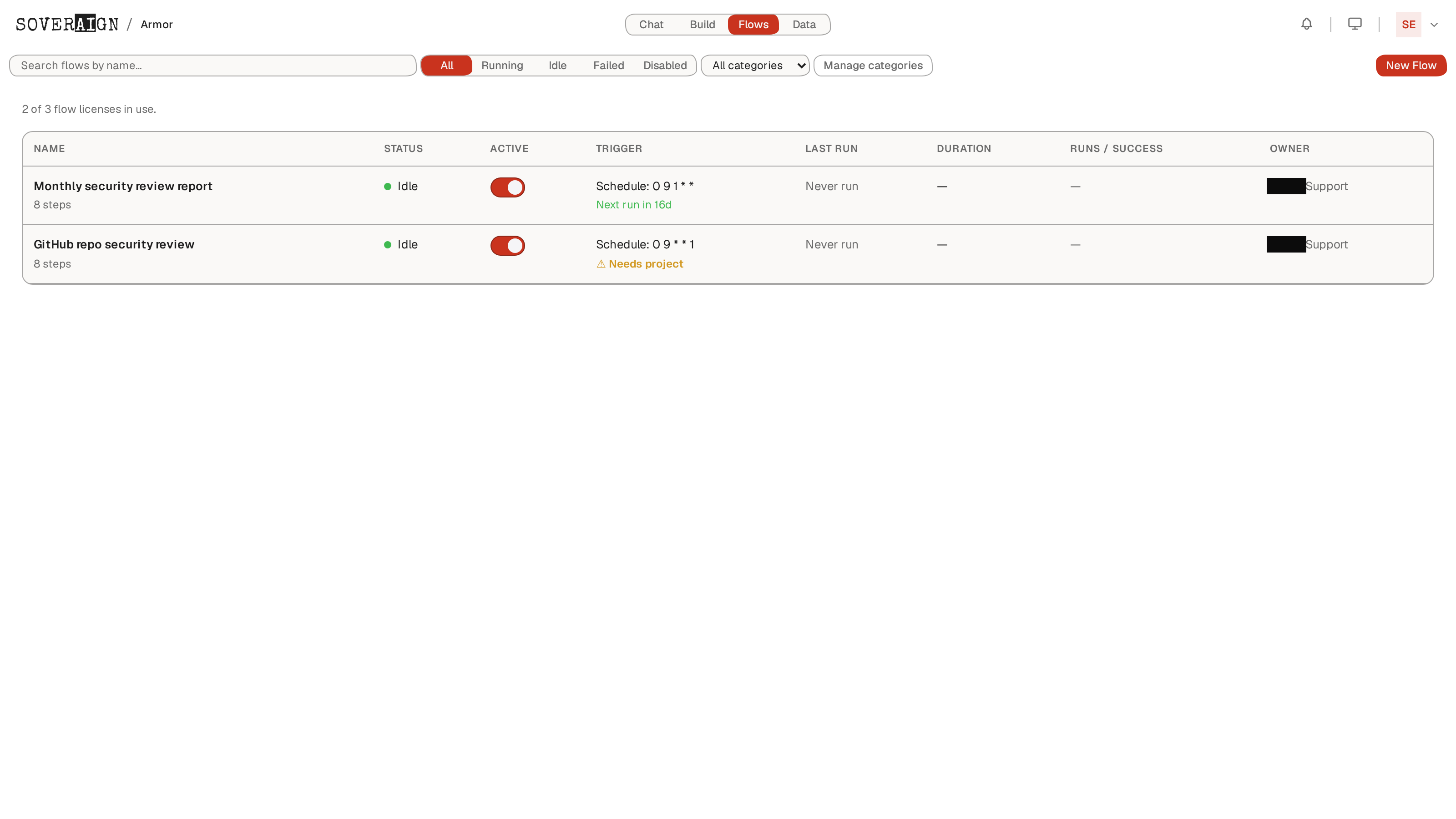
Click into the Flow and open the Runs tab to see every execution. Expanding a run shows a live, step-by-step trace with per-node status, duration and cost - so you can watch the pipeline progress and pinpoint any failure.
Notes & limits
- →Node types are fixed. You compose from the palette (Trigger, Crew, Agent, Swarm, Decision, Loop, Human, Report, Set Variable, Echo, HTTP Request, GitHub). There's no bespoke "SAST" or "Jira" node - those capabilities are expressed with Swarm and HTTP Request nodes as shown here.
- →The GitHub node exists too, for write actions back to a repo (
comment,create_branch,commit_files,open_pr) - useful if you later want the Flow to open a fix PR rather than just a ticket. - →Credentials for Jira and the Teams/email webhook are stored once in settings and referenced by the HTTP Request nodes - they're never inlined into the Flow definition.
- →Requires a Build seat. Flows is a build-surface feature and is gated accordingly.