First login: set up your workspace
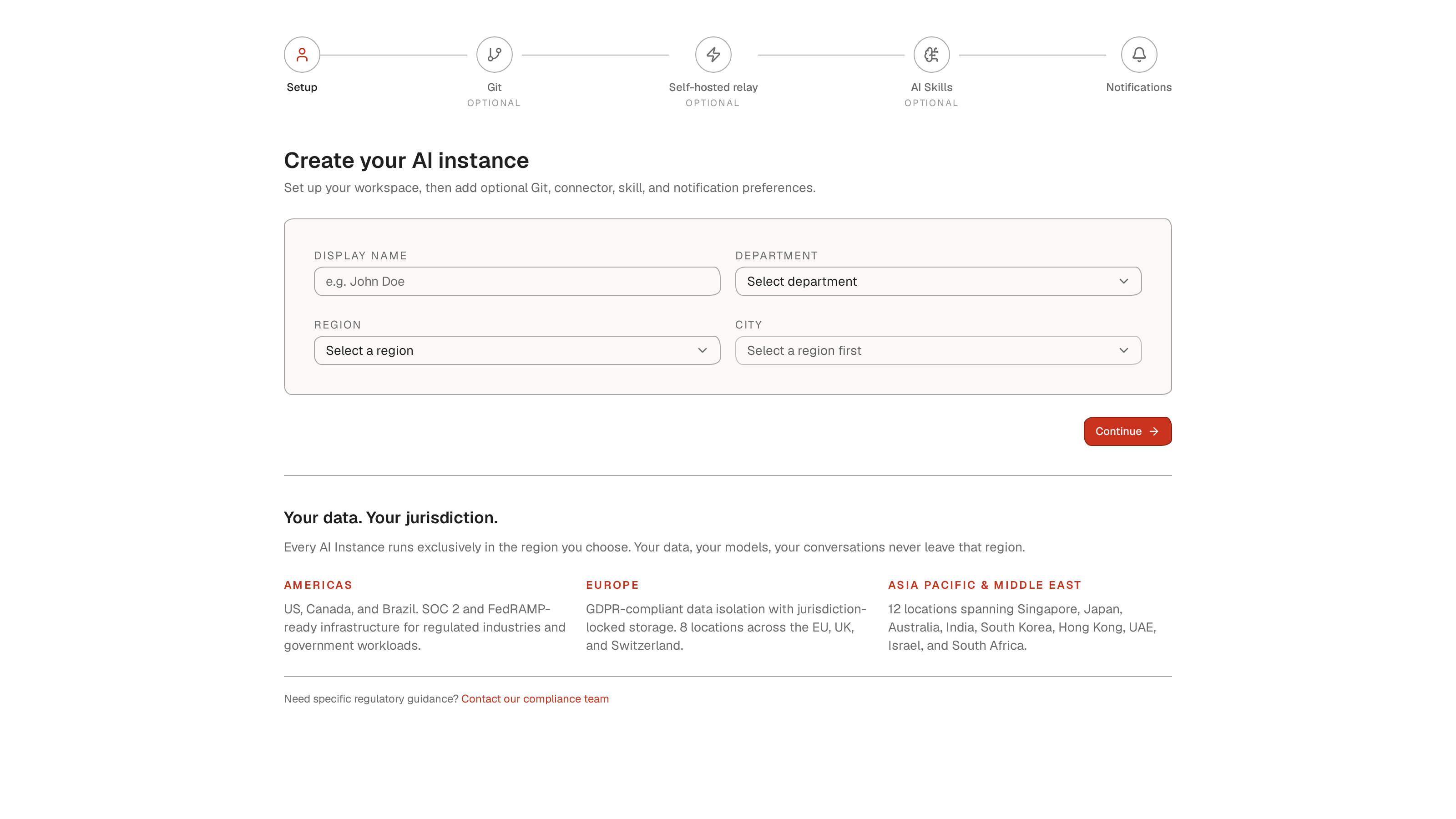
Your first sign-in does not drop you into a chat. It walks you through setup: a short wizard that creates your AI instance and wires your preferences. Five steps, and only two are required.
- 1Setup: your display name, department, and the region and city your instance runs in. Every instance runs exclusively in the region you choose; your data, models, and conversations never leave it.
- 2Git (optional): connect a repository so agents can branch, commit, and open pull requests in your codebase.
- 3Self-hosted relay (optional): point agents at your data sources so they can read and act on your organization's content.
- 4AI Skills (optional): choose built-in skill packs or upload your own definitions.
- 5Notifications: choose how and when you hear from your swarm.
Pinning your instance to a region is what makes data residency a fact instead of a claim: it is the setting a compliance reviewer or an auditor asks for evidence against.
Skipped a step? Everything optional here lives in settings too. Git tokens, connectors, and skills can be added any time.
Get oriented
- 1After setup you land in Chat. The top bar carries four surfaces: Chat, Build, Flows, and Data. This guide lives in Chat; the others get their own guides.
- 2The bell shows notifications, the palette icon opens visual settings, and your avatar opens account and organization menus.
Make it yours: theme, accent, presentation
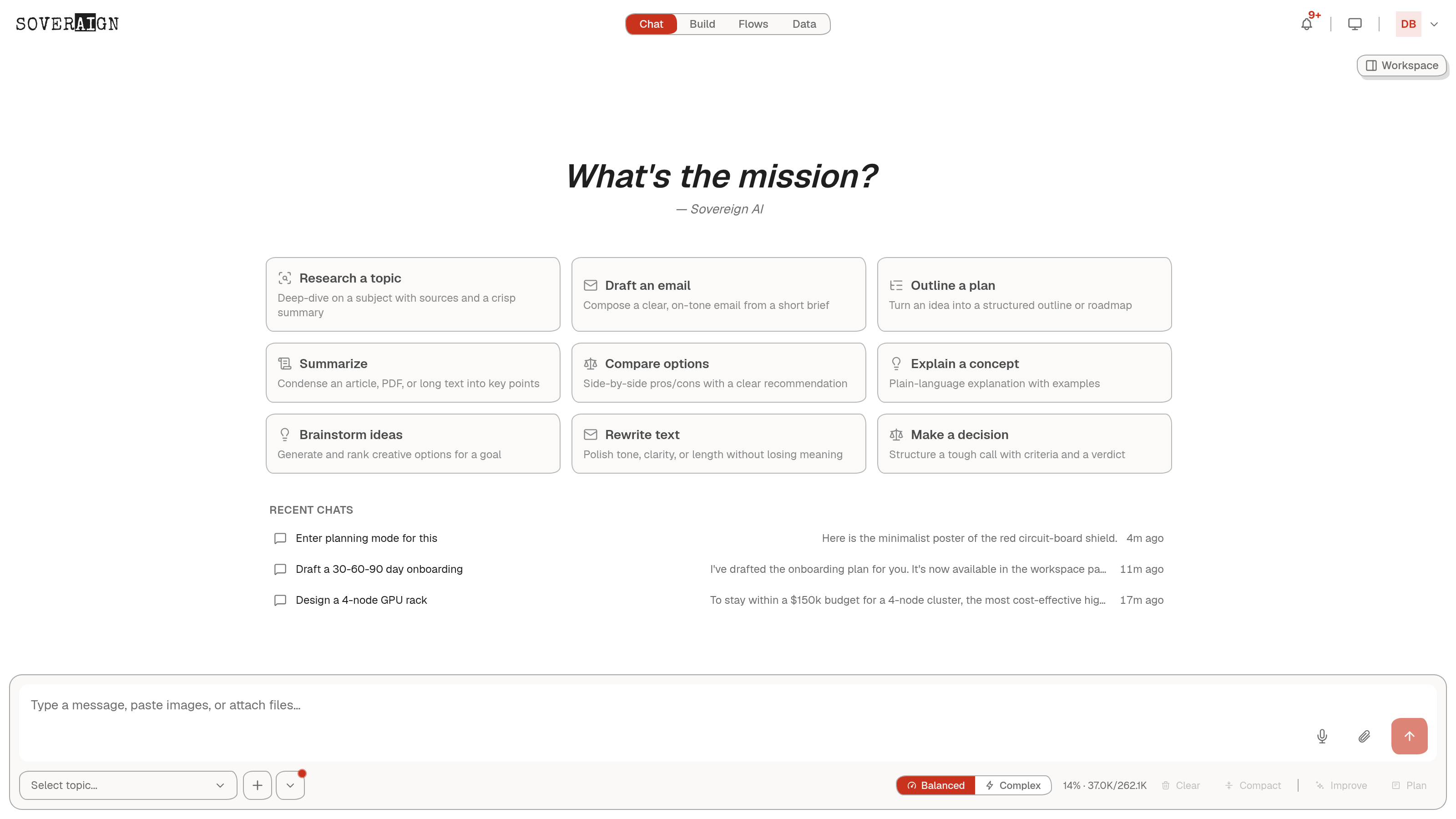
Open the palette icon in the top bar. Six themes (Light, Grey, Dark, Midnight, Black, System) plus Sovereign, the hand-drawn house theme. Below them, accent colors recolor every accent surface in the app: Tempered Gold, Emerald, Blue, Purple, Pink, Orange, Sovereign Red, Cyan, Neutral, or a custom color you pick. A contrast control (Low, Medium, High) tunes text weight against your theme.
At the bottom of that menu sits Presentation mode: true browser fullscreen for demos and focus work. The same menu is where you exit it.
Quick starts are yours to edit
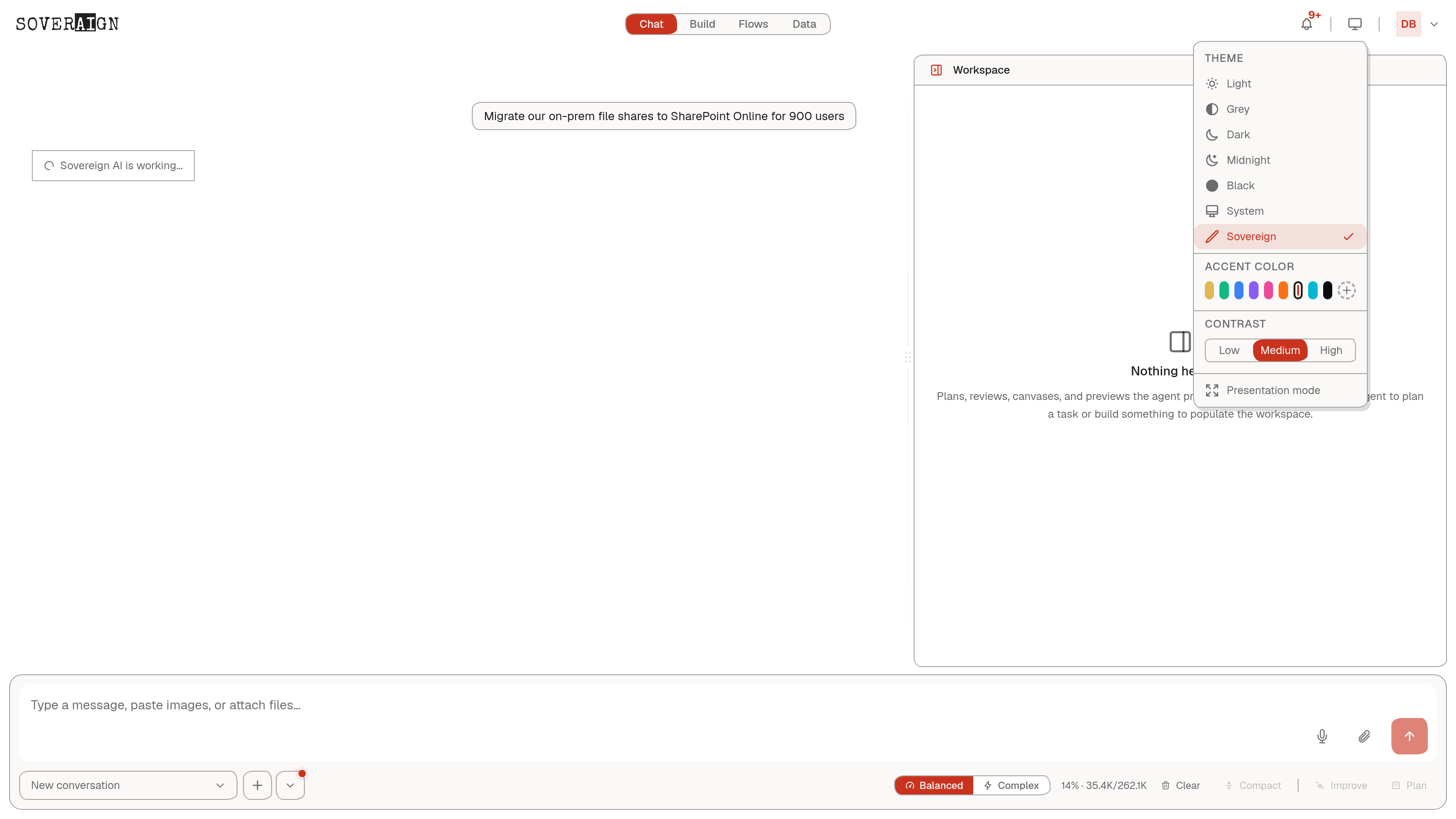
The cards on the chat home are not fixed. The Quick Start button under the composer opens the editor: reorder, rewrite, or replace the defaults with your own prompts, each with a name, description, icon, and the prompt text it seeds. Your set is saved to your account and follows you across devices. Teams commonly replace the generic defaults with their own playbook: triage this ticket, draft our status update, review this contract clause.
Talk to it
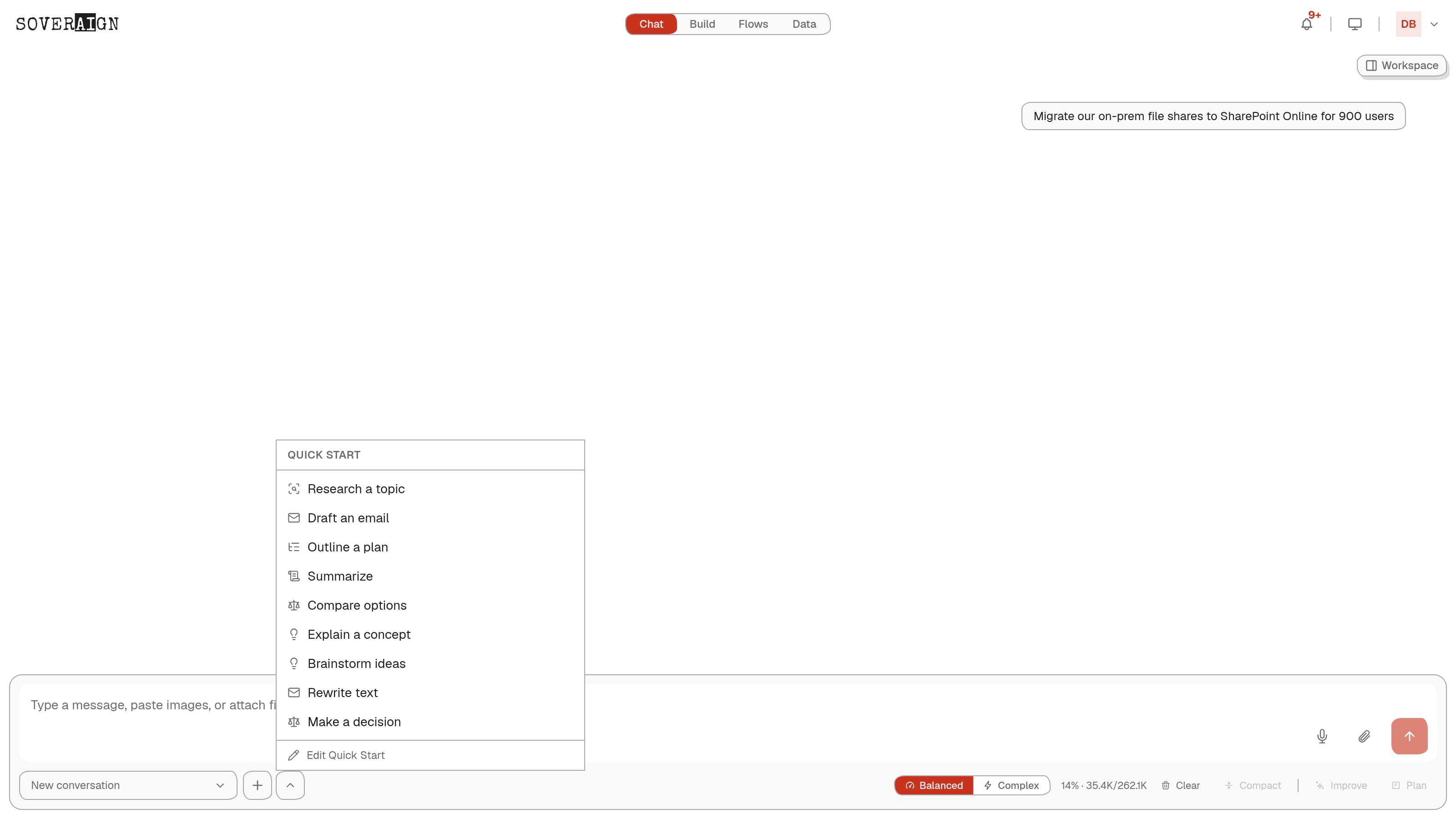
Type in the composer, or tap a quick-start card to seed it. Conversations organize into topics: leave the selector on New conversation and a topic is created for you, or pick one to continue a thread. The composer takes pasted images and file attachments, and the microphone starts voice dictation.
The composer carries two speeds. Balanced is the default and routes each message to the right model for the task; Complex engages the higher tier for the hard problems, one tap away, with your live usage metered beside it. Your org controls which models sit behind each lane on the Routing page.
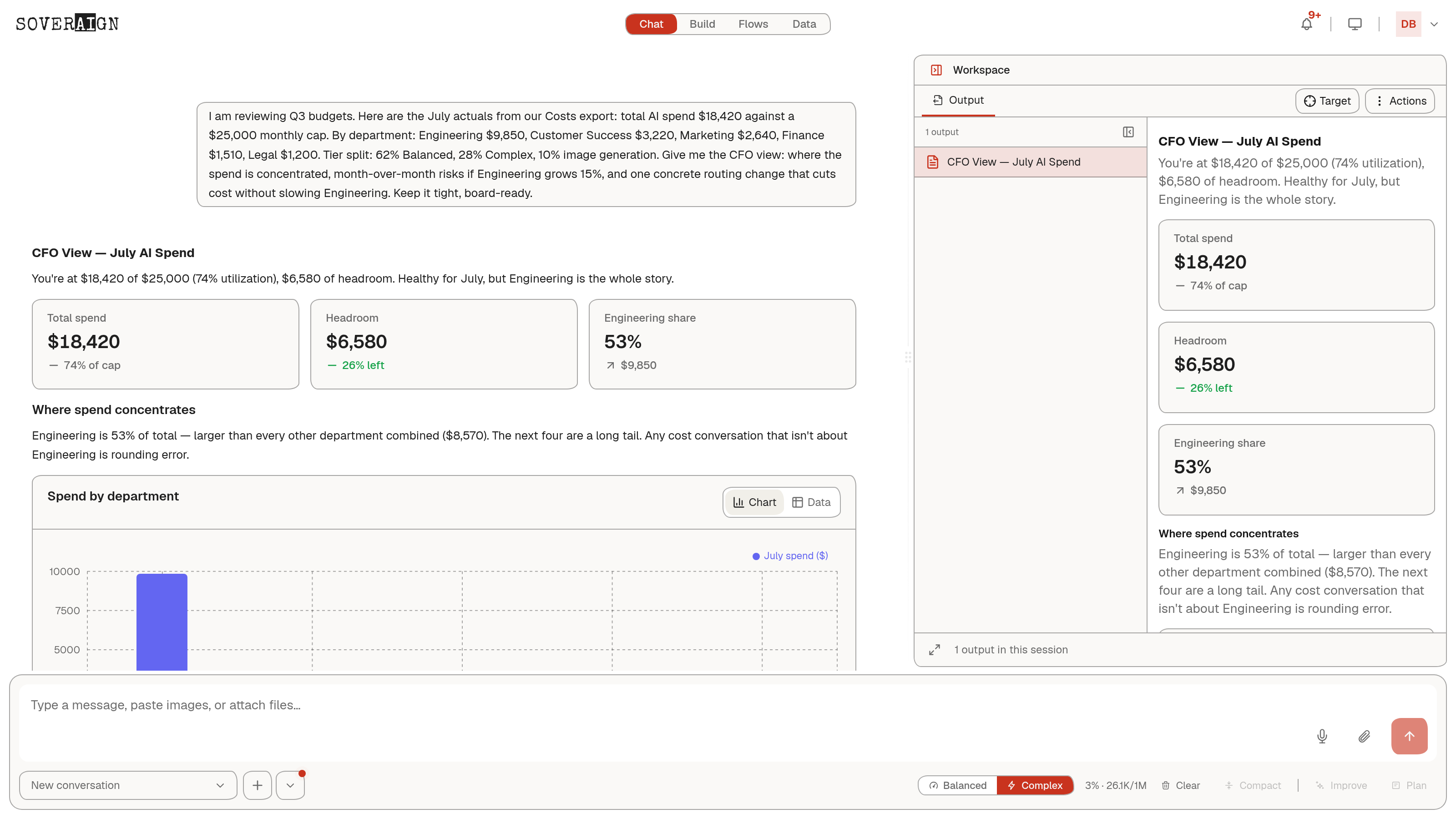
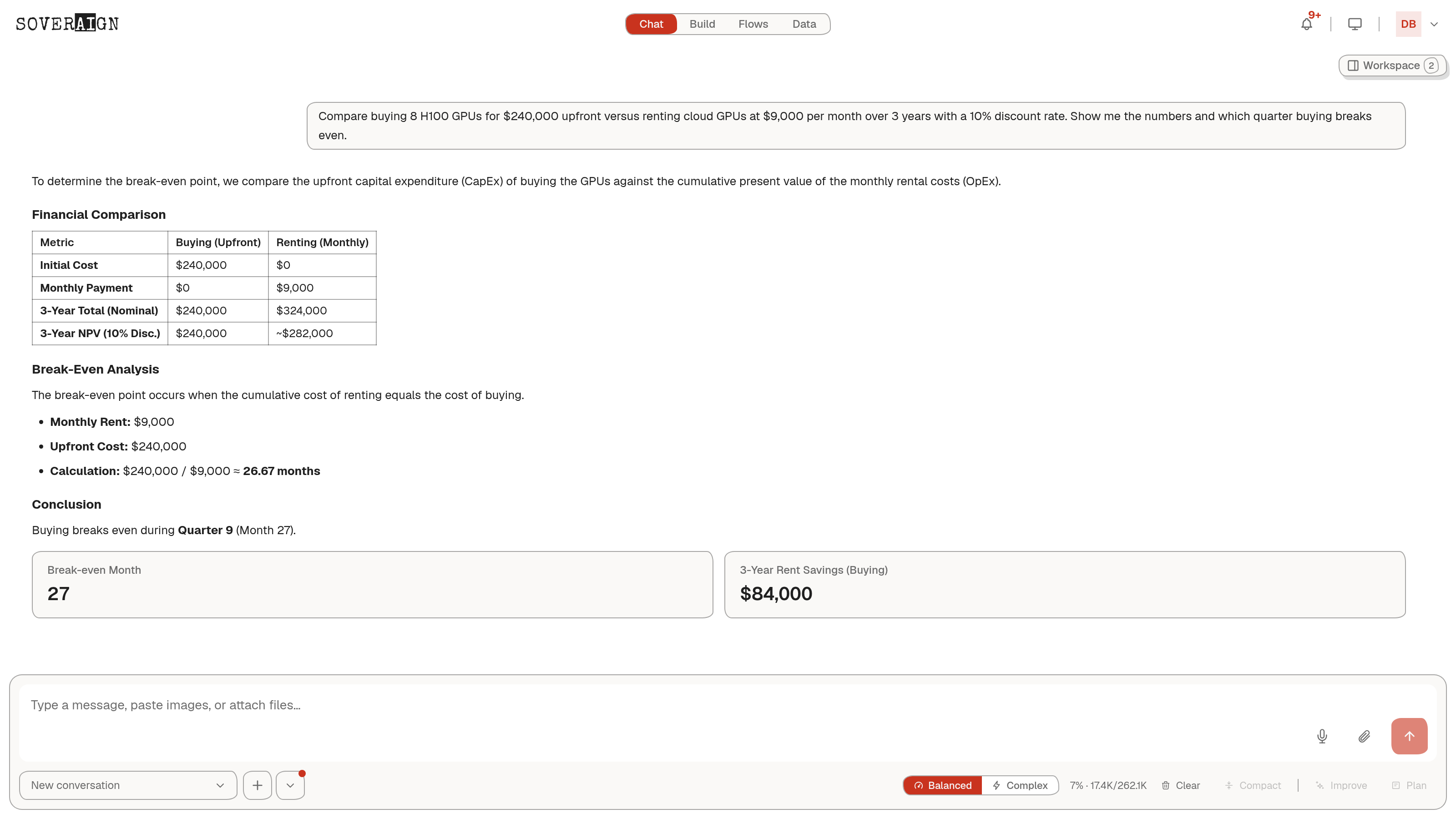
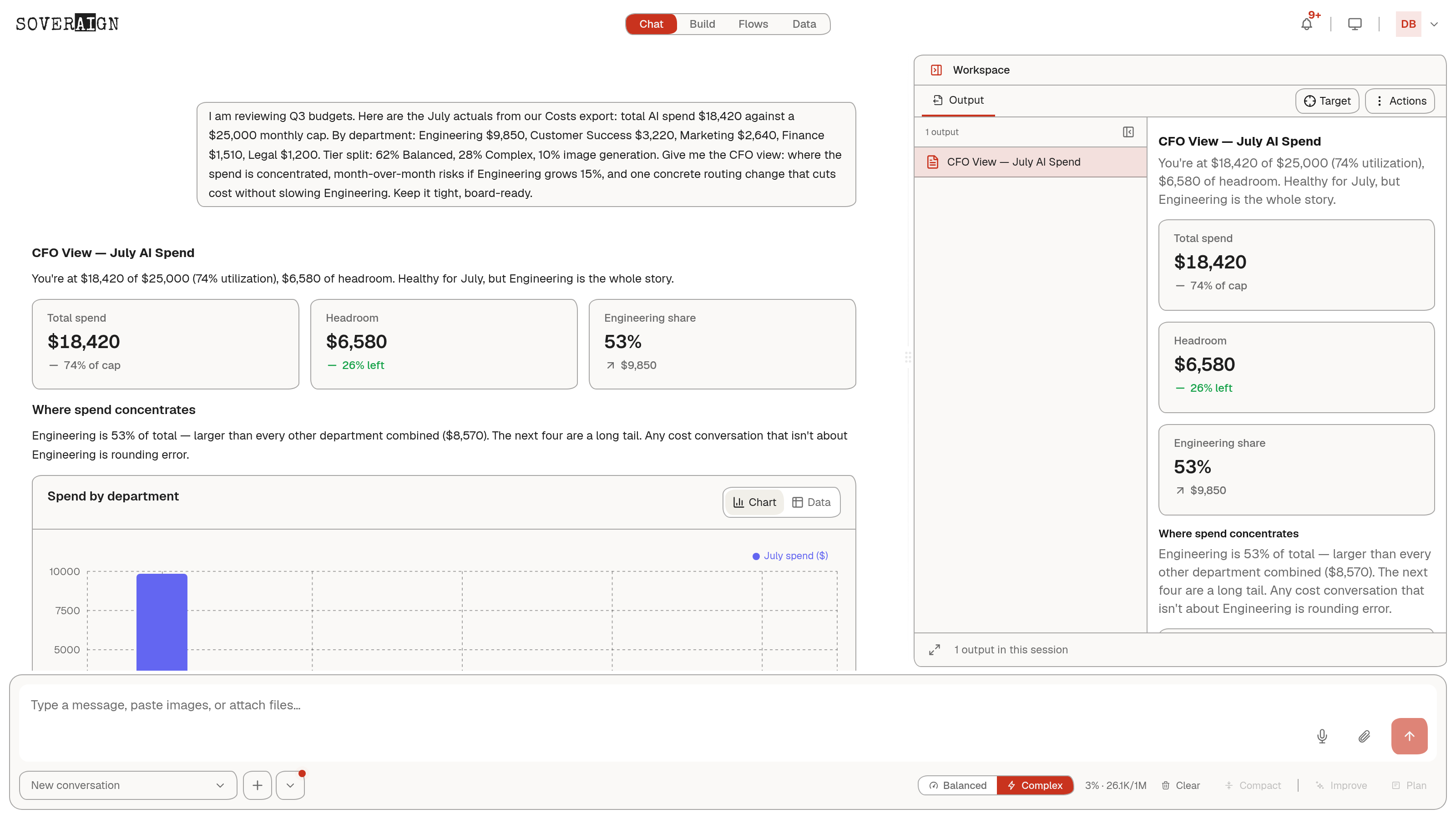
Answers are not limited to prose. Ask for a comparison and you get a live chart with a Chart/Data toggle, summary stat cards, and the "so what" spelled out underneath. Ask for a financial model and the numbers come back as stat cards and a crossover chart, with the full document filed in your Workspace.
Generate images without leaving the chat
Need a visual for a deck or a doc, ask for it. Image generation runs through the same governed gateway as everything else: billed, rate limited, and content moderated by your organization. The result lands in the conversation, ready to copy, regenerate, or iterate with a follow-up.
Improve: sharpen the ask before you spend on it
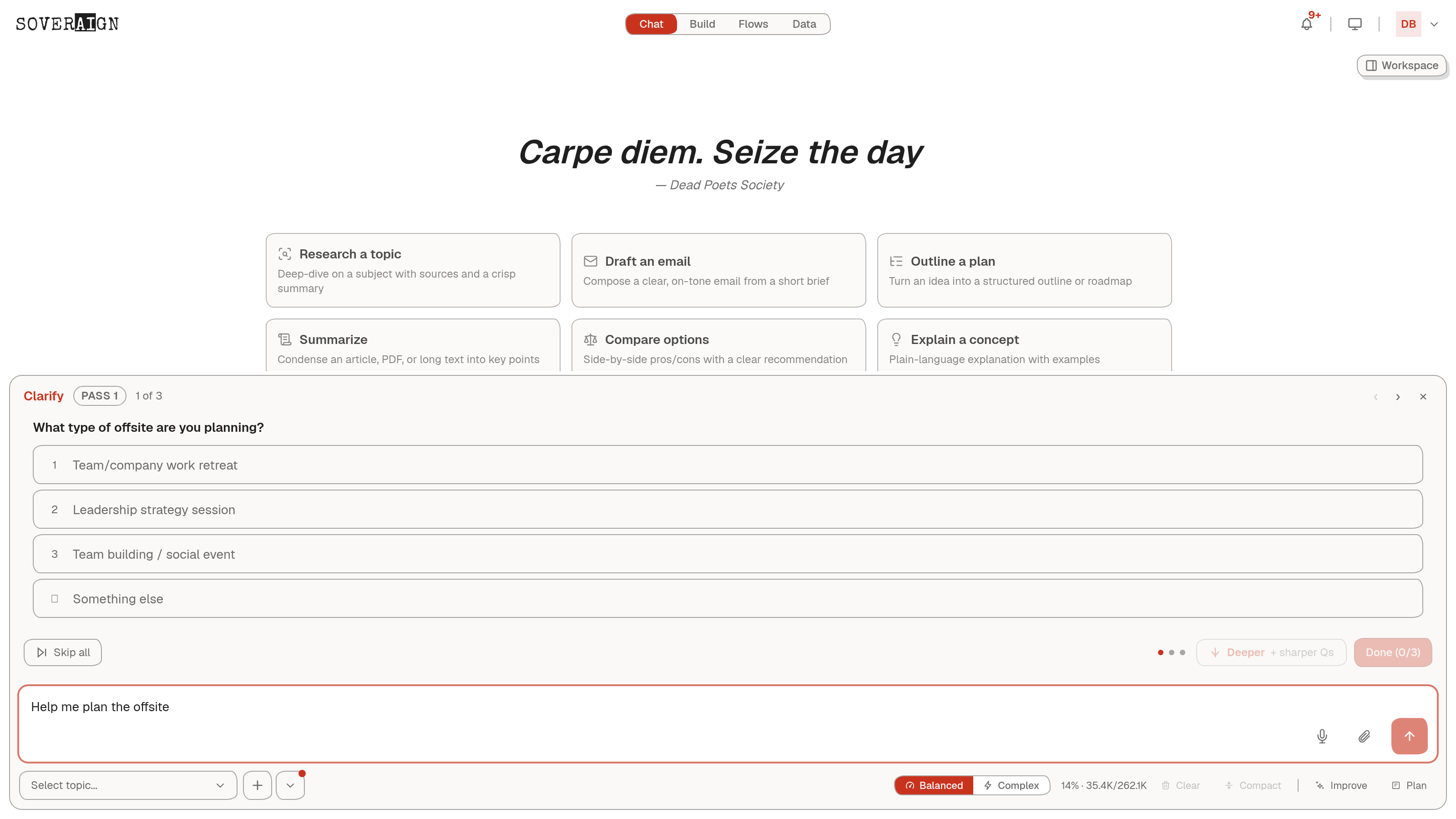
A vague prompt gets a vague answer. Write your draft, then press Improve. The app analyzes your prompt and asks a short round of clarifying questions; answer the ones that matter and skip the rest. Want more rigor, press Deeper for a second, sharper round. Improve then rewrites your prompt with your answers baked in. Not happy, press Undo and your original is back.
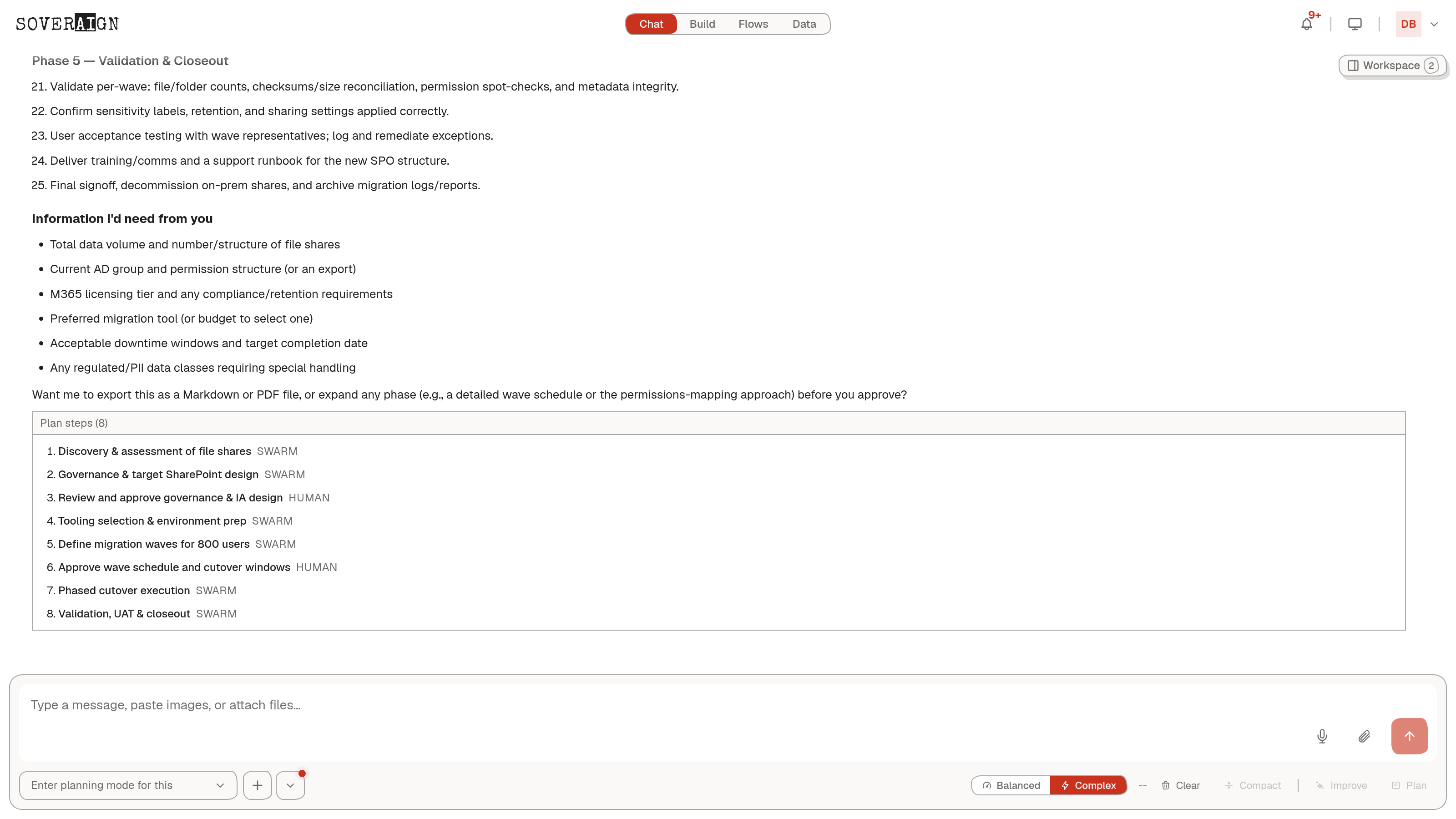
Plan: see the work before it runs
For anything bigger than a question, press Plan instead of Send. The assistant drafts the full plan: phases, steps, and the information it still needs from you. Every step is tagged SWARM or HUMAN, so it is explicit which parts run autonomously and which parts wait for a person. Stakeholder sign-off and go/no-go reviews stay human. Nothing executes until you say so.
The Workspace: where work products live
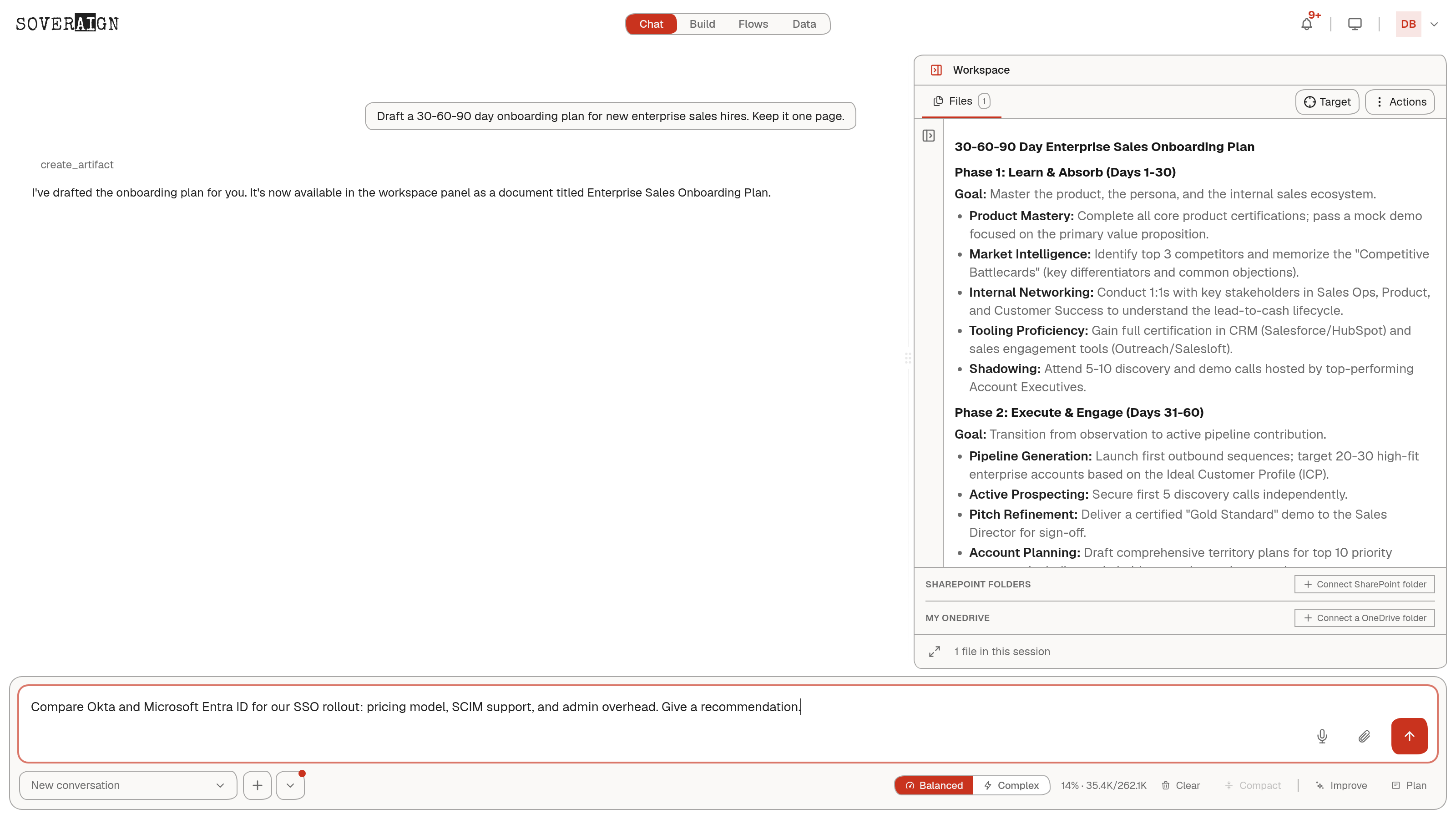
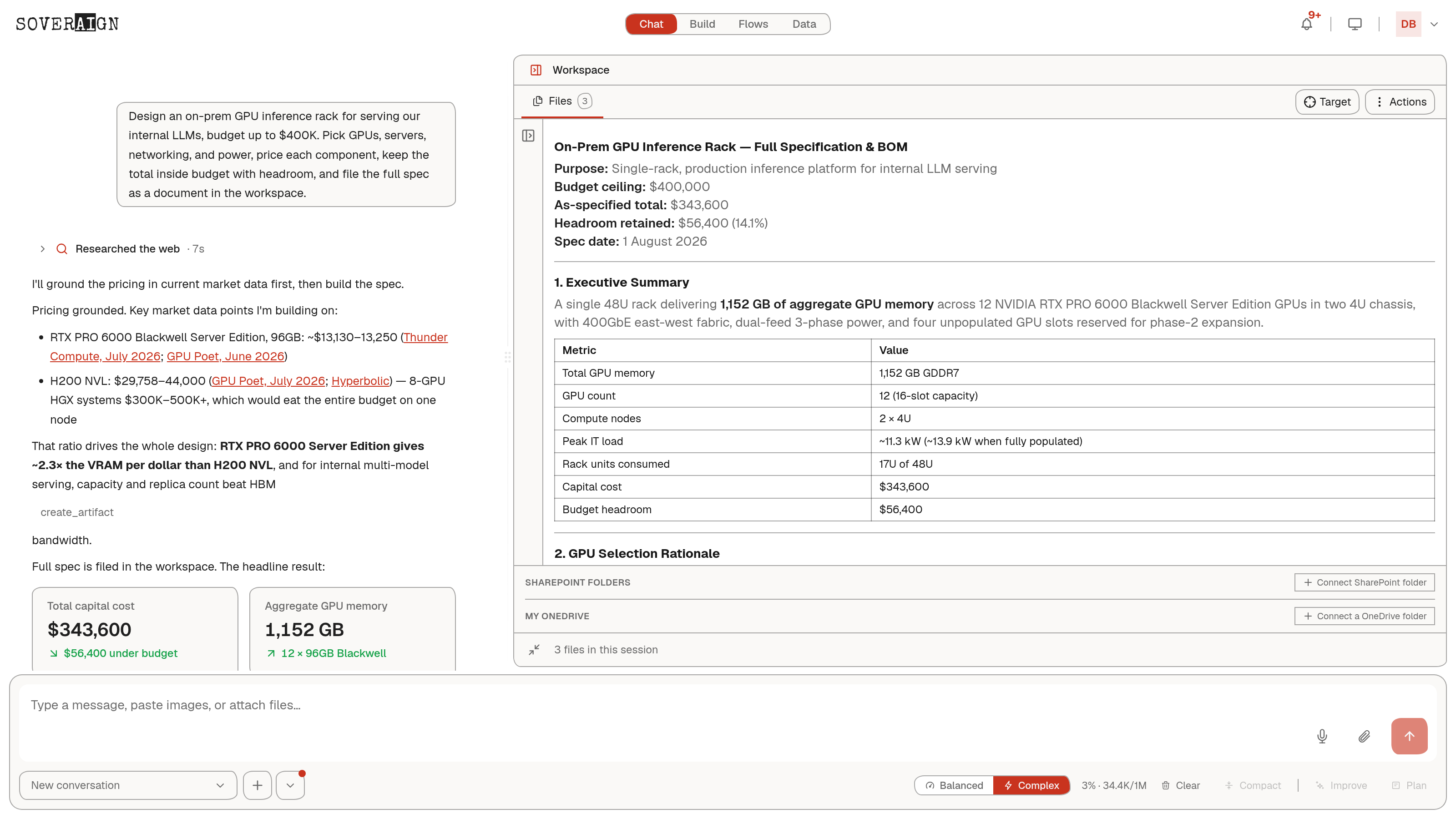
The Workspace button at the top right opens the panel that holds what a conversation produces. Ask for an agenda, a report, or a full financial model and it lands here as a live document beside the chat, instead of scrolling away in prose. Drag the divider to give the document as much room as it deserves; the panel and its files persist with the session.
And it pushes back when the numbers deserve it. Asked to design a 48U rack elevation for the GPU buildout, it produced the full elevation as a workspace document, then flagged that the specified UPS chain covers roughly a third of the rack's full load and recommended 3-phase feeds, with the circuit math shown.
Governed means asked, not assumed
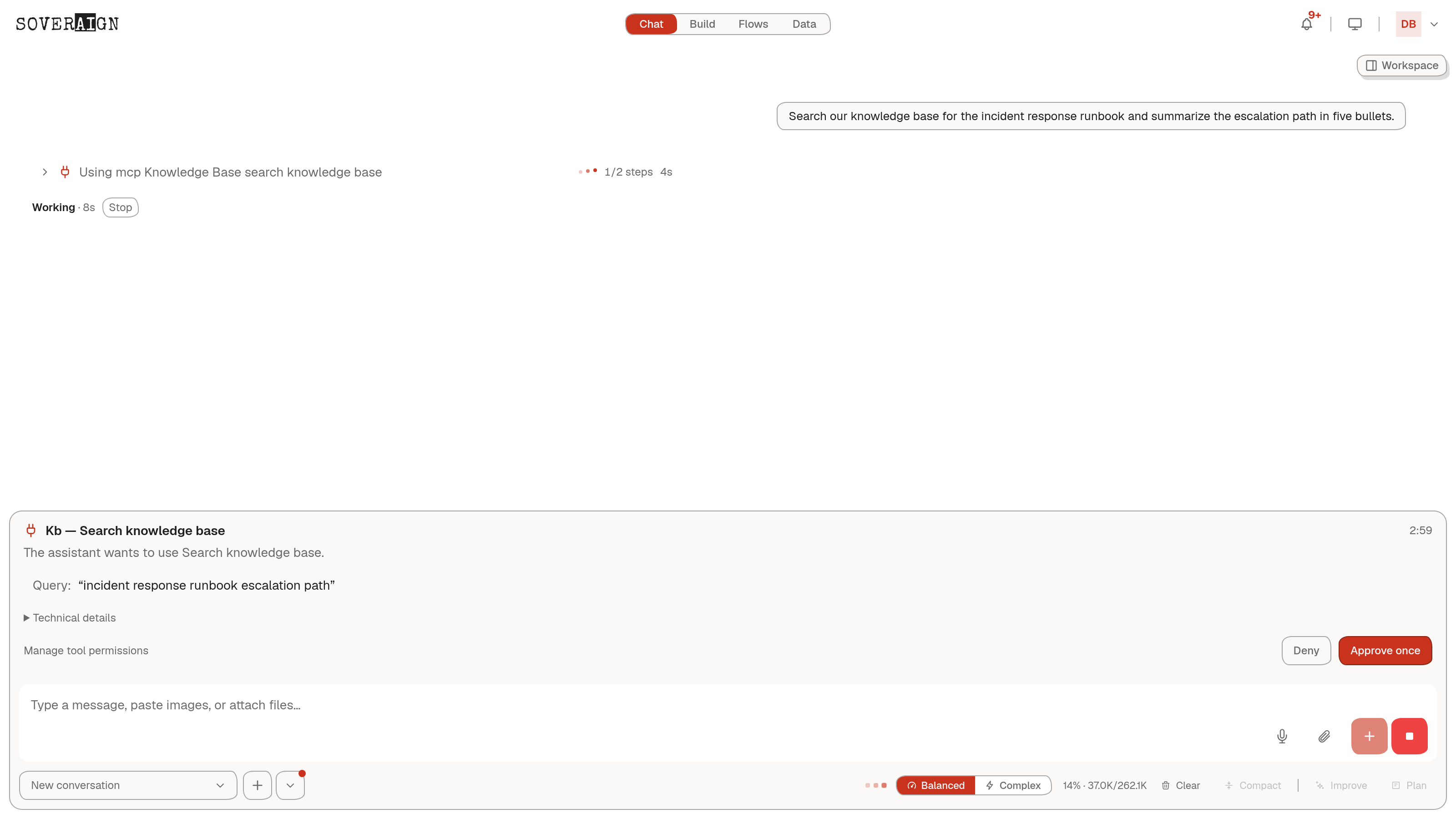
When the assistant wants to reach beyond the conversation, searching your knowledge base or calling a connected app, it does not just do it. An approval card shows the exact tool and arguments. Approve once, deny, or open Manage tool permissions to set a standing policy.
Your organization's content policy also screens messages. Depending on the rules your admin set, sensitive content can be blocked, redacted, or flagged, and the message tells you when that happens so you can rephrase rather than guess.
Work with the answers
- →Copy any message; edit your own message to re-ask it; regenerate a reply you do not like; rate answers helpful or not.
- →Long replies stream in. Stop halts generation; stopped replies offer Continue and Retry.
- →Compact condenses a long conversation so it stays fast without losing the thread.
- →New chat starts fresh; Clear wipes the session.
Model names, prices, and available tools in these screenshots reflect one organization's catalog. Yours is configured by your admin and will differ.