Topics
Each project holds multiple topics, so parallel threads never bleed into each other. Open the Topics panel from the Topics button in the composer footer to switch or start one. A new topic is created automatically with your first message, and the active topic survives refreshes and deep links: a stale or foreign topic id fails closed to the quick-start screen, never to an error.
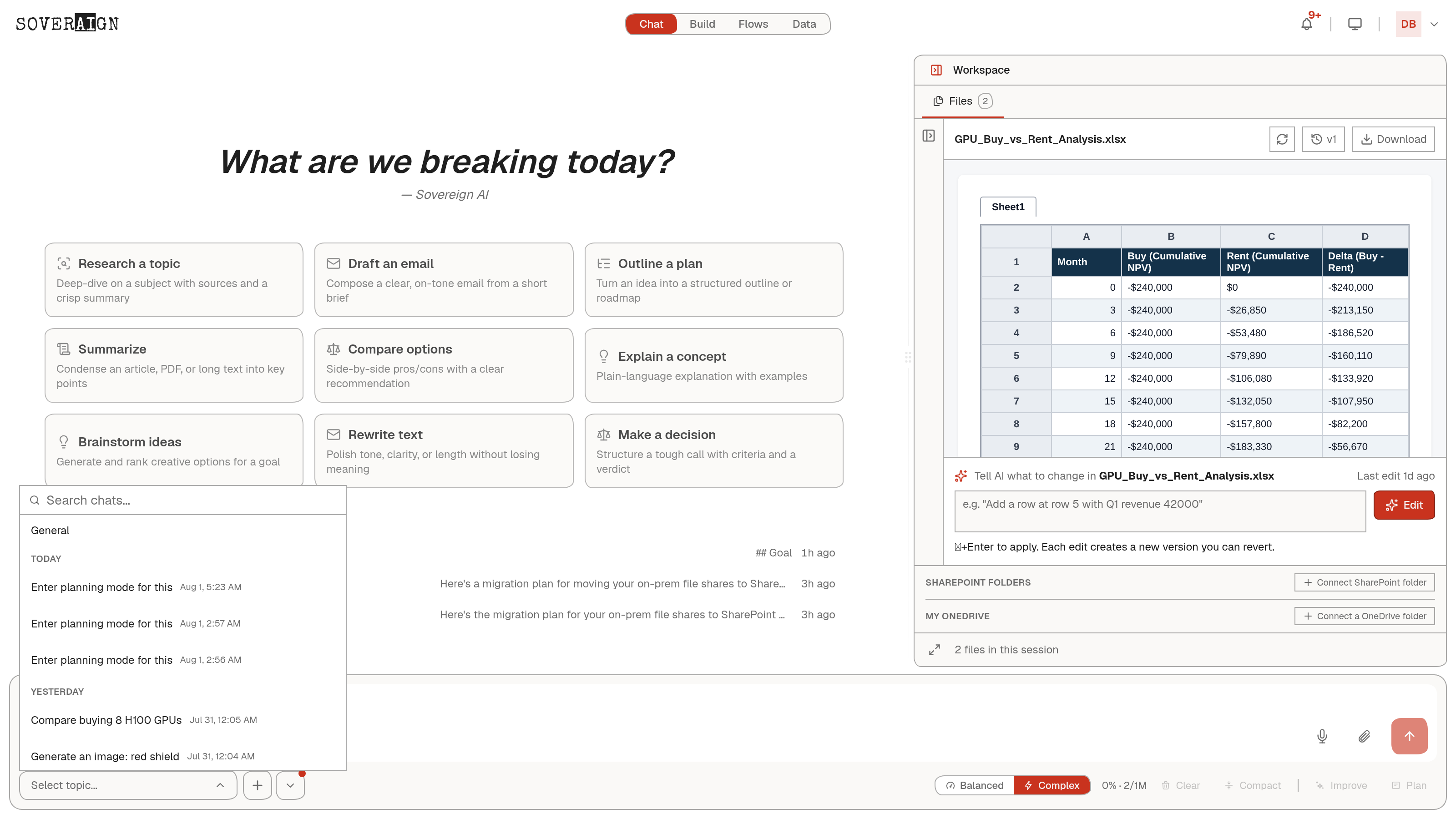
The empty topic screen offers quick-start prompt cards for common jobs, like researching a topic with cited sources. Your own card set is a saved preference. Use them as starting points, then edit.
Sending a message
- 1Open a project and pick a topic, or just start typing.
- 2Attach images from the composer if the task needs them.
- 3Pick a model from the model picker, or leave it on automatic selection. Models that support it expose a reasoning-effort choice that is remembered per model.
- 4Send, or use the Plan button to run the same prompt in plan mode: the agent writes a plan document first instead of executing.
- 5The response streams in live. You can stop a running turn, and a stopped turn can be retried.
Sharpening a prompt before it runs
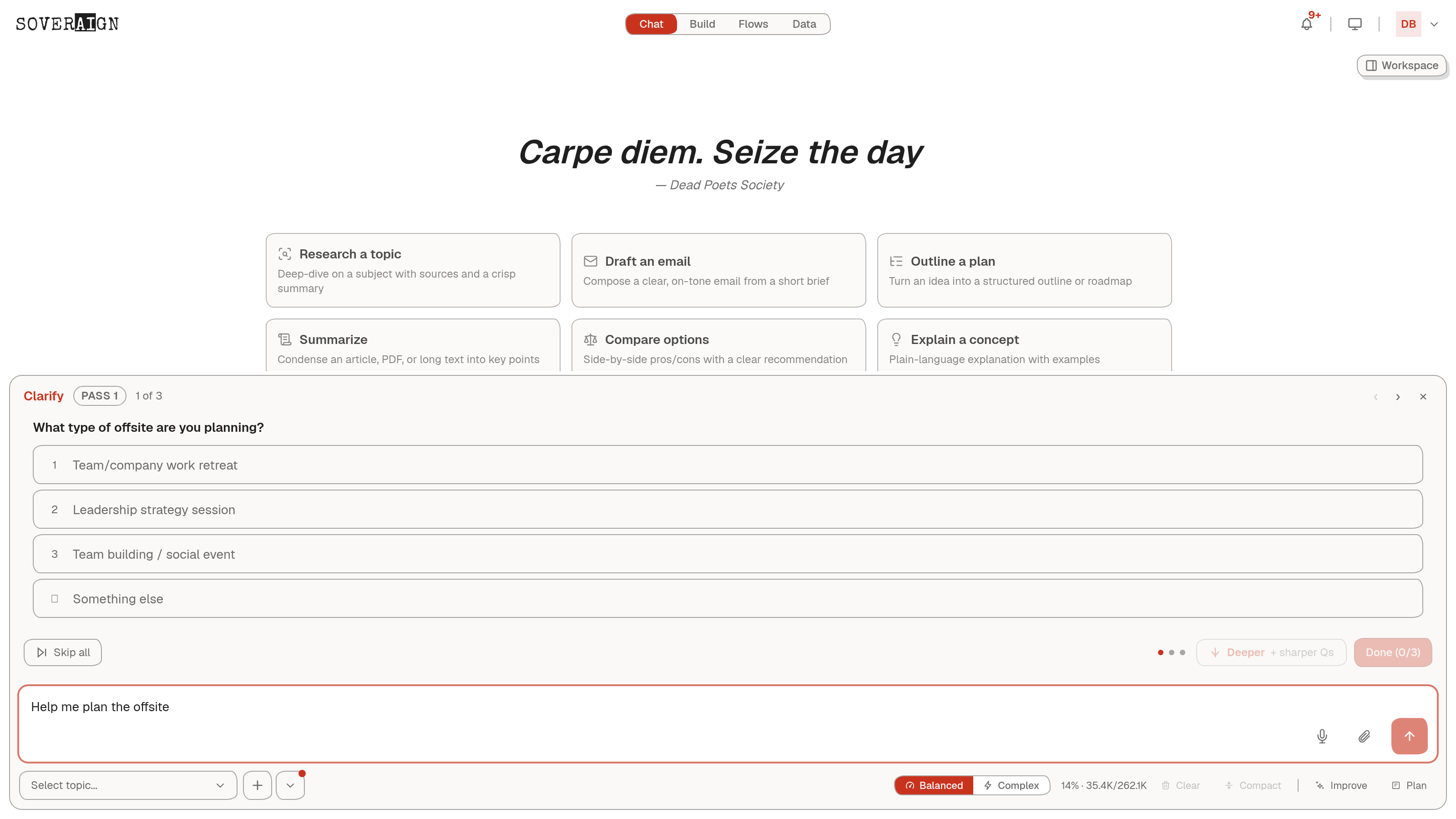
The Improve action analyzes your prompt and, when it is ambiguous, raises a clarification card above the composer: a short set of questions with selectable options plus a free-text answer. Answer them and the platform rewrites the prompt with your answers baked in. A Deeper button offers a sharper second round of questions building on the first. Thirty seconds of questions is cheaper than a wrong deliverable.
While the agent works
Tool calls, file edits, and progress render inline as the turn runs. The agent can also raise a blocking question mid-turn: the same clarification card appears, the turn holds until you answer, and a notification fires so you do not miss it.
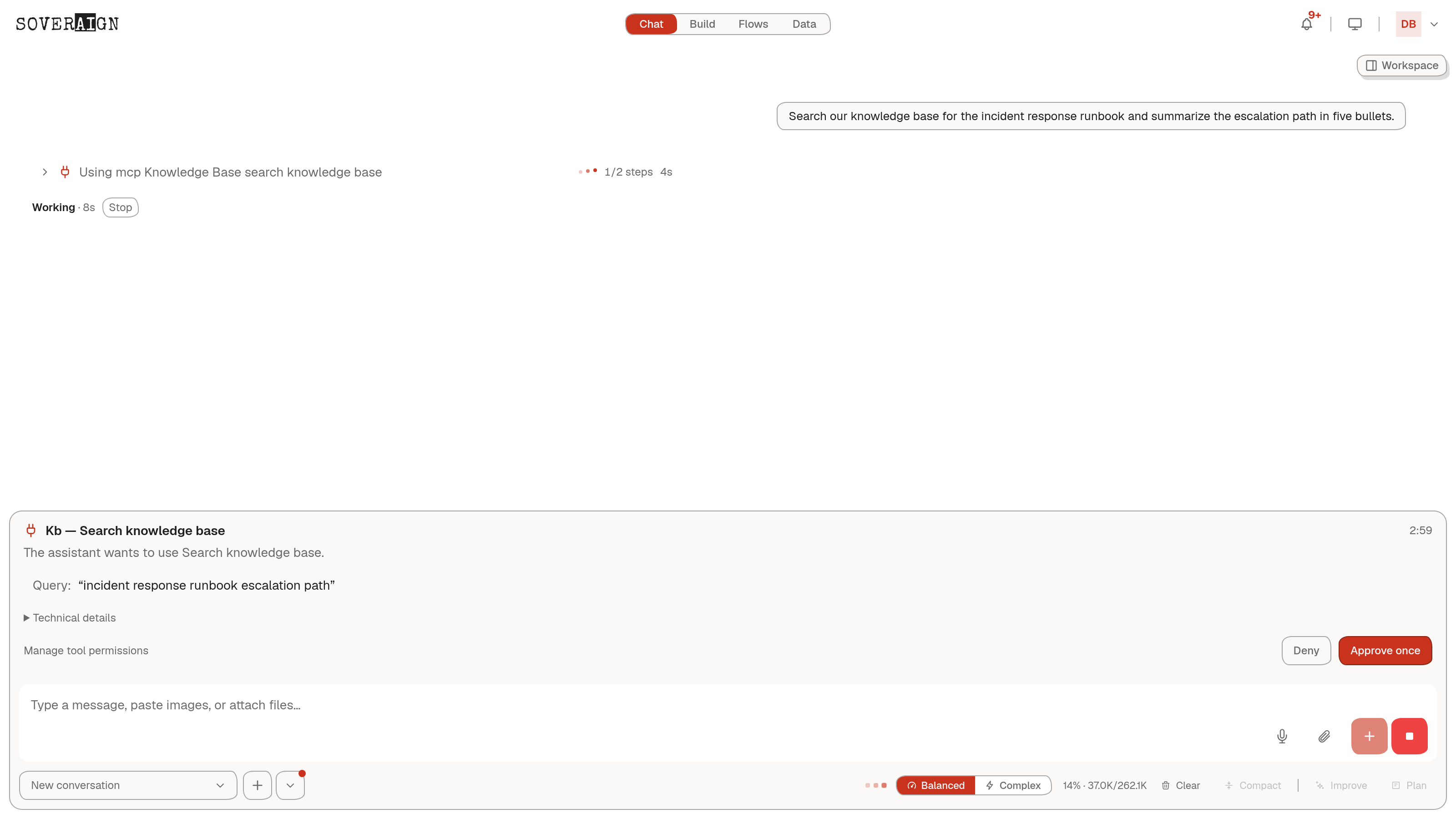
Some tool actions do not execute on their own. Connected app calls raise an approval card in the thread that states in plain language what the assistant wants to do, with the exact arguments shown as inert text and the raw tool call available under Technical details. You choose Approve once or Deny. Approvals expire on a visible countdown, and an expired approval can never be redeemed: the server refuses stale decisions regardless of what the UI shows.
Where output lands
Substantial output such as reports, tables, and code can route into the Workspace panel as Output tabs, leaving a compact chip in chat. The thread stays readable; the deliverable gets a real surface. Long conversations can be compacted to keep the context tight without losing the record.
What the org admin controls
Chat behavior is governed per org through feature settings: the Workspace panel, auto-routing output to it, voice input, regenerate, and the editable-canvas surface can each be enabled or disabled. Members can opt out of auto-routing individually unless the org locks it. The AI never gets a capability the org has switched off, and the server enforces the flag even if a stale UI still shows the button.
Slash commands cover the fast paths, for example /stop to halt the current agent. Type / in the composer to see them.